Using the Panel
 Roles
Roles
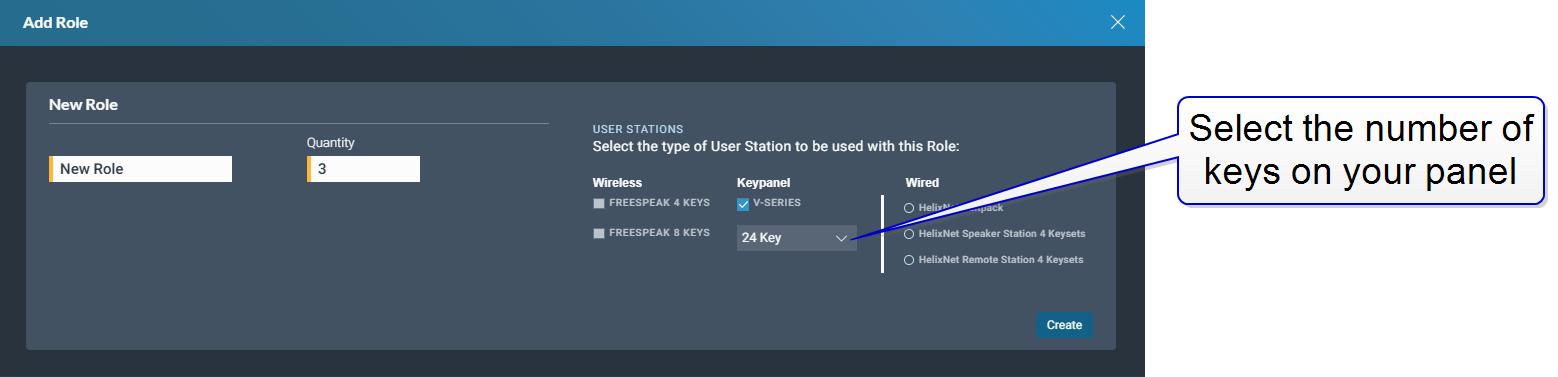
Before using the panel you must configure a role for it in CCM > Configuration > Roles. Create a role type that matches your panel (12, 24 or 32 keys).
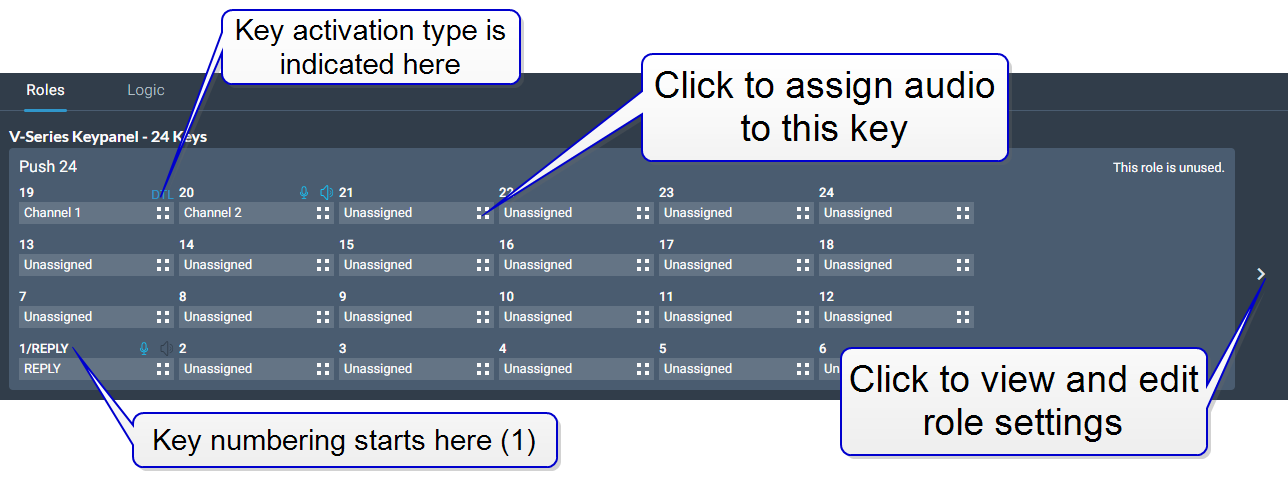
It is possible to select a role for a panel that does not match the number of keys on the panel. For example, you can select a 12 key role on a 32 key panel. If the role layout does not match the physical panel, the panel keys are populated serially, starting from key 1 (Reply) in the lower left-hand corner of the panel.
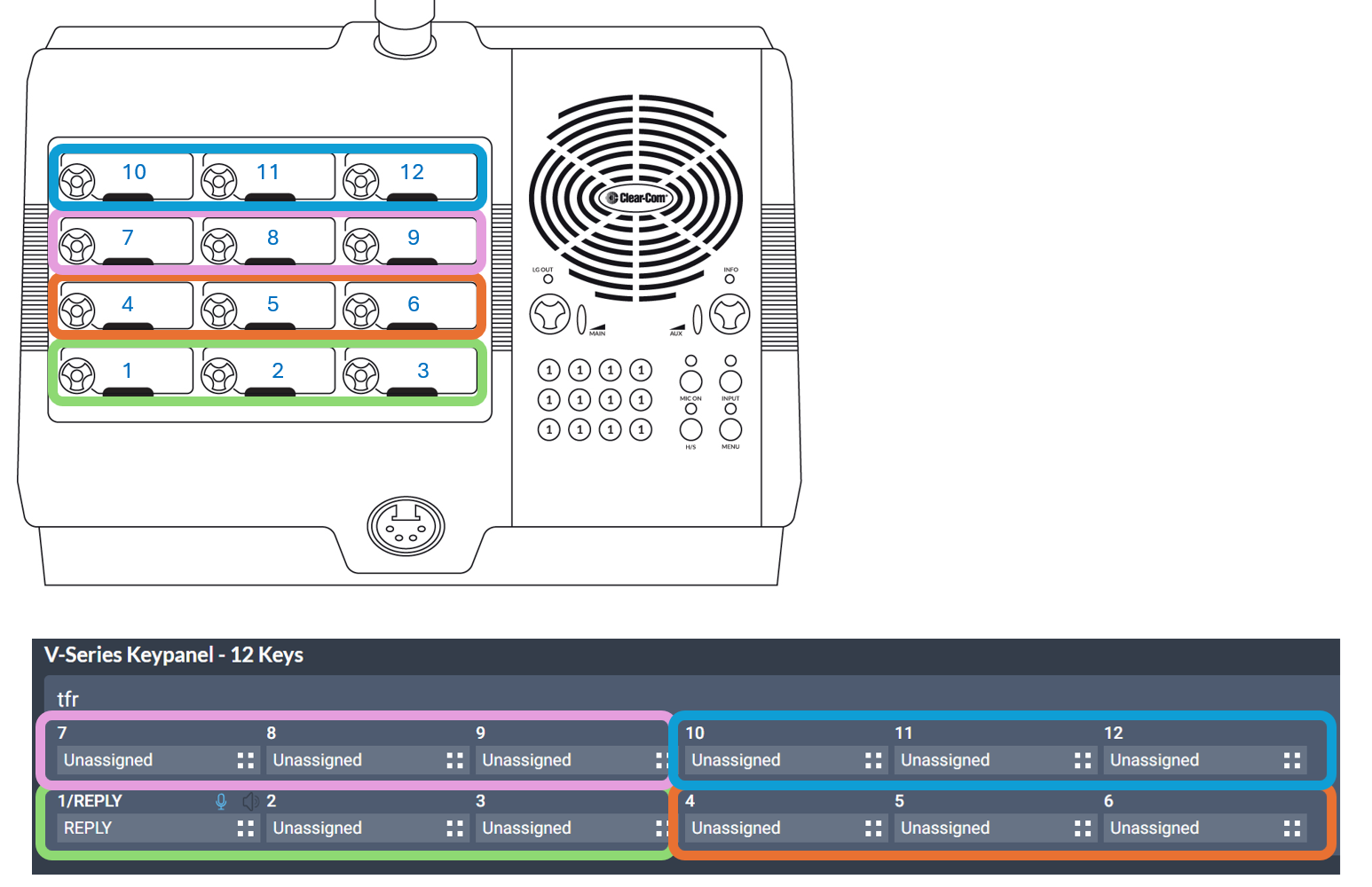
| Note: | Desktop panels can be configured using the 12 key 1RU Role layout. Keyset layout on a desktop keypanel is as follows: |
| CCM Panel Keyset | Desktop Panel (Row 1 = bottom row) |
|---|---|
| 1-3 | Row 1 |
| 4 - 6 | Row 2 |
| 7 - 9 | Row 3 |
| 10 - 12 | Row 4 |
For more information on using roles with your keypanel see Managing Roles.
Keypanel Endpoint and Associated Port
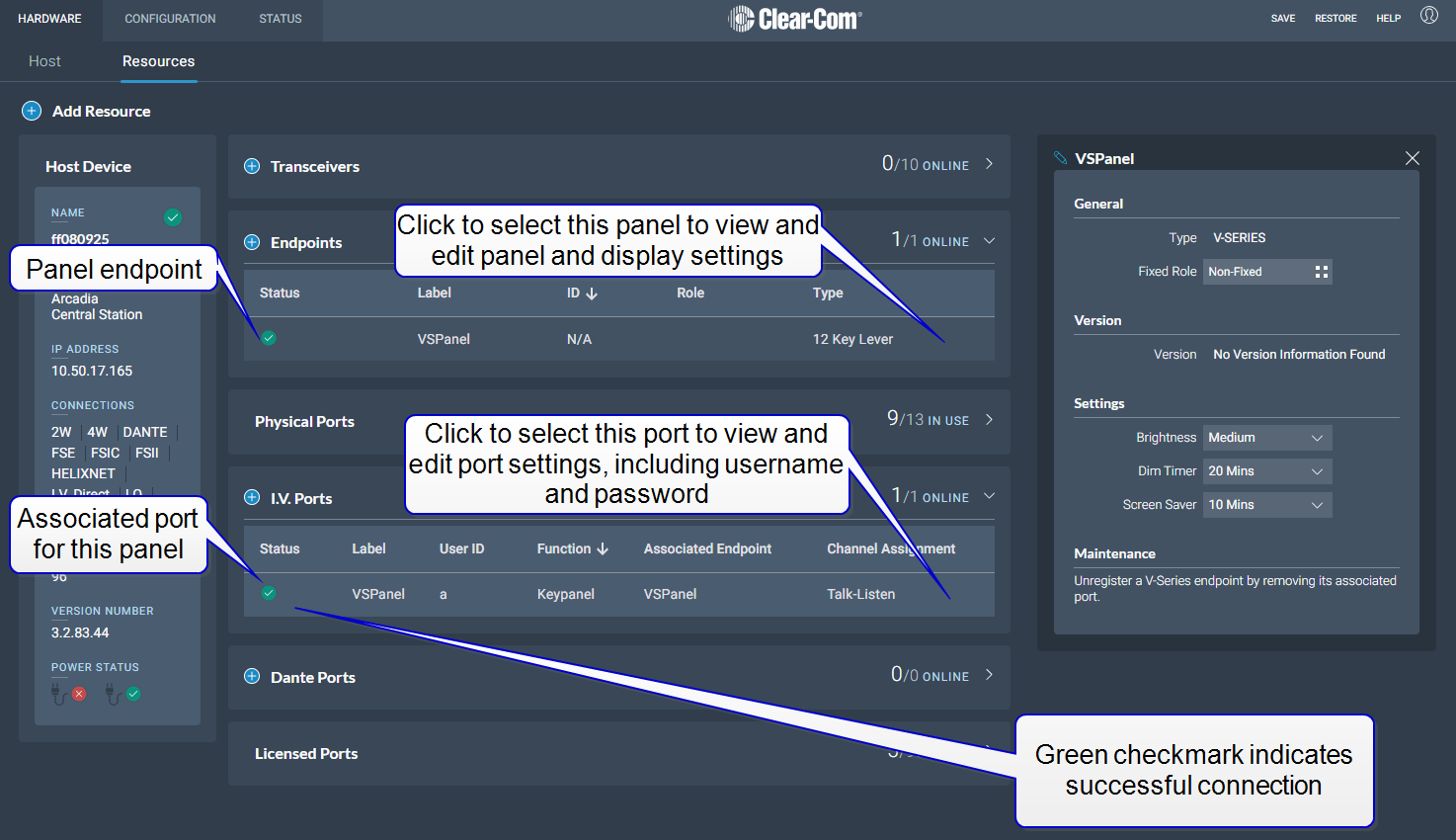
In the CCM Resources Page, a keypanel has an endpoint and an associated port. The panel controls are distributed across both the endpoint and the associated port.
Endpoint
Fixed Role: click to select or change the role for this keypanel. Selecting a role automatically fixes it to this panel. The role selection toggles on and off.
Display:
Brightness
Dim timer
Screensaver
Version: Keypanel firmware version
Port
The I.V. port has two tabs:
Settings
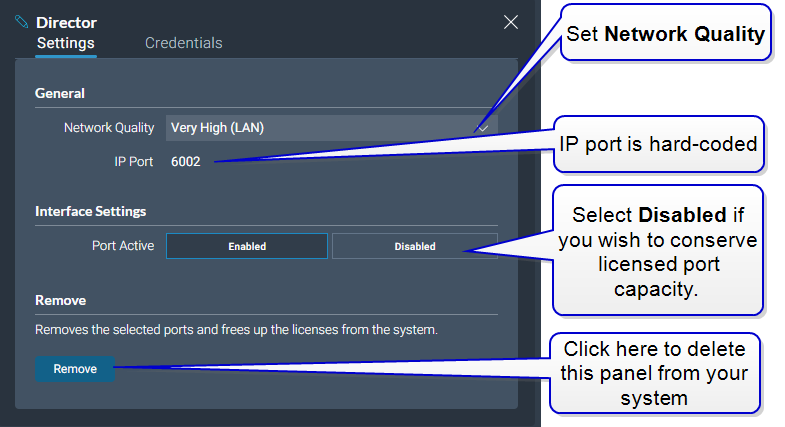
Interface Settings: An I.V. port keypanel needs a licensed port. If you disable the Port Active checkbox (default is enabled), the port will remain in your configuration but will not consume a licensed port. You will not be able to connect a panel to this port if it is disabled, or if there is no licensed port available.
Credentials:
These are the login credentials for the keypanel.
Username (max 10 characters)
Password (optional, max 10 characters)
Start Using the Keypanel
If a role is fixed to the panel, the panel will start, using that role and keysets assigned in the CCM. If the role is not fixed to the panel, select the role you need using the panel controls and press Start.
| Note: | Find the admin pin code for the keypanel menu system access in Hardware > Host > Wireless > General > Administration Pin. |
For more information on Roles see Roles
For more information on keypanels, see the V-Series Panel User Guide, available from the Clear-Com website.