Signing Up to the SkyPort Portal
You can sign-up to SkyPort as:
A Clear-Com customer
An Authorized Clear-Com Partner
Both procedures are described below.
Purchasing Subscriptions

When you log into SkyPort for the first time, you will see your own account and its default workspace containing a Trial system. Click the blue Add Subscription button to purchase a subscription to Gen-IC.
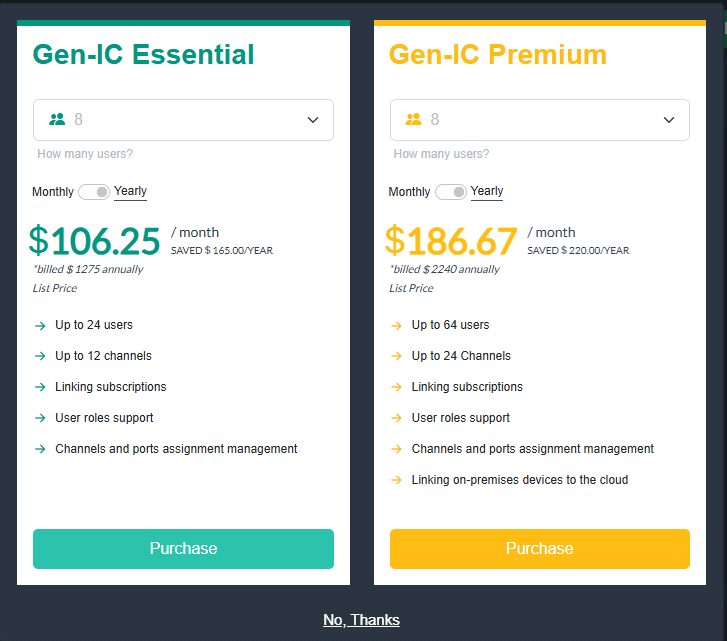
Alternatively, click the green Purchase via Partner button to purchase from a Clear-Com Partner. You are then directed to the Clear-Com Find a Partner site, where you can search for a Partner based on your location.
| Note: | The Account Owner must make the first purchase on a new account. |
| Note: | Please upgrade your SkyPort to include workspaces after your first purchase to create SkyPort workspaces free of charge. |
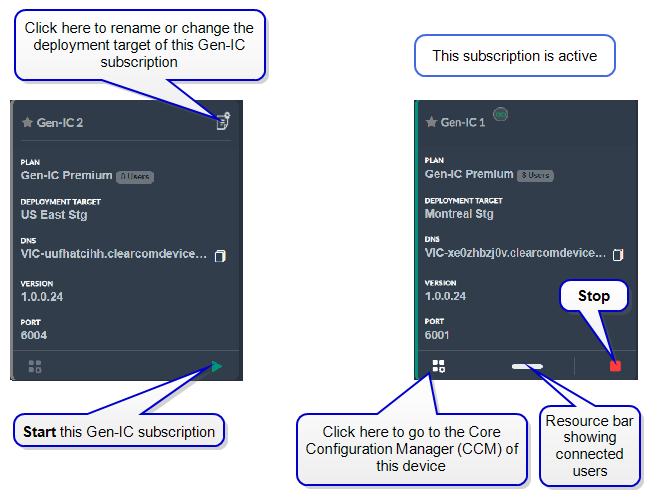
All new subscription purchases will be automatically added to your default workspace where you will see the subscription:
Notifications and Menu Options
Notifications
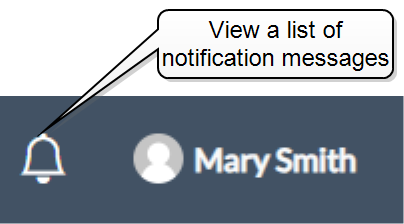
Regularly generated notifications keep you updated about the status and any recent changes to your system including updates. Click on the Notification icon in the header banner to view a list of messages.
Menu Options
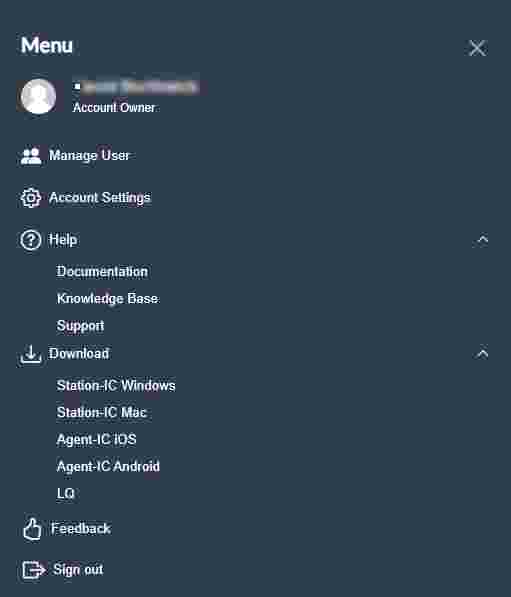
From the fly-out menu at the top-left of the SkyPort Dashboard you can:
Switch between your account and others you may have been invited to use, manage users, and add new users (Manage Users)
Change your account settings including email and password (Account Settings)
View a list of your current subscriptions, add new subscriptions and see your billing information (Account Settings)
Access SkyPort Help documentation and request technical support (Help)
Download software and firmware including Virtual Clients (Station-IC and Agent-IC) and LQ Series (Download)
Rate your experience of SkyPort and leave any feedback comments (Feedback)
Log out of SkyPort (Sign out)