SUPERVISE menu
The SUPERVISE menu can be accessed either via an assigned ‘hot key’ (see Supervisor hot key in this manual) on the panel or via the MENU system.
The SUPERVISE menu allows the user to select another panel to supervise from the panels listed in the sort groups. There is also a separate supervisor mode that is available from the EHX configuration software. For more information about this mode, see the EHX Software Configuration User Guide.
| Note: | The target panel cannot be the current panel (an error message will be displayed if this is selected) and must be a V-Series panel with the same number of keys or fewer keys than the supervising panel. |
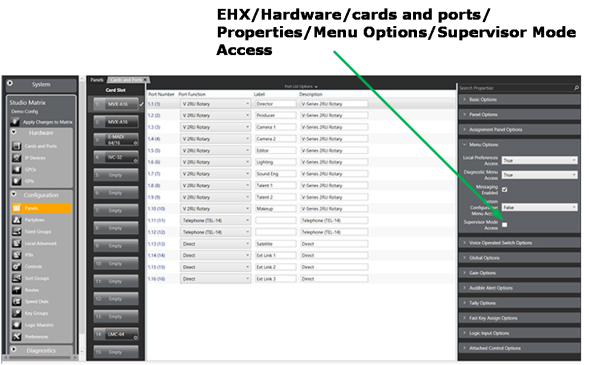
| Note: | The supervise option must be enabled in EHX, otherwise this menu option is not displayed. This checkbox is found in Hardware/Cards and Ports/Properties/Menu Options within the EHX configuration software. |
To access SUPERVISE via the panel MENU system:
- Press the MENU key to enter menu mode.
- Press the key labeled SUPERVISE.
- In SUPERVISE mode (see below) follow the instructions to select a panel to control.
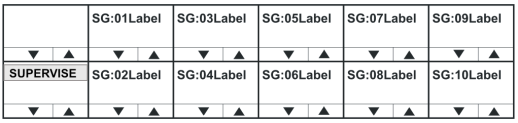
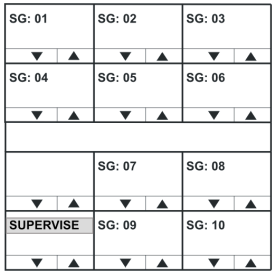
Use the up/down buttons (lever key and pushbutton panels) or rotary control on the Reply key to scroll through the available Sort Groups and select the name of the Sort Group containing the required label using the lever key or pushbutton or talk button.
This will display the Sort Group label selection menu.
| Note: | To return to the main menu, press the Reply key or Reply key talk button (SUPERVISE). |
Selected Sort Group in the SUPERVISE menu
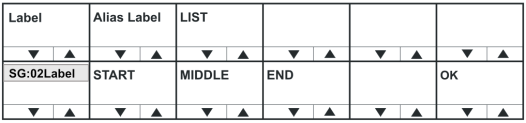
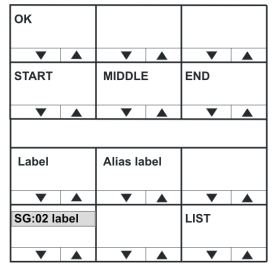
The selected Sort Group label / name is displayed on the Reply key and the first member of the sort group is displayed on the top row of the display.
Selecting START will take the user to the start of the sort group. Selecting MIDDLE will take the user to the middle of the sort group, and selecting END will take the user to the end of the sort group.
Selecting OK will select the currently displayed member of the sort group and place the panel corresponding to the label into supervised mode.
If the panel is unable to supervise the panel an error screen is displayed.
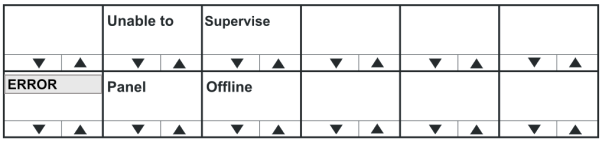
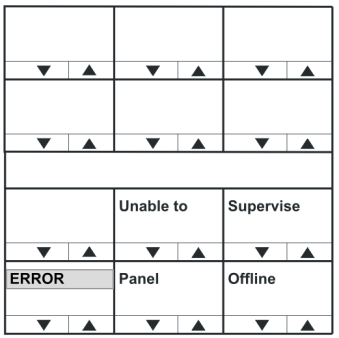
The Panel Offline error message (shown above) is displayed if the target panel cannot be supervised because it is offline.
For other errors, such as an invalid port or panel type, the Unable to Supervise message is displayed.
When the panel is actively supervising another panel the keys displayed on both panels are inverted to indicate the current state (instead of light text on a dark background the key displays will show dark text on a light background).
Supervising panels
When in Supervise mode, the V-Series panel can mimic and control other V-Series panels in the local system. This involves remote actioning of key presses and displaying a mimic of the target panel's display. While in Supervise mode, all key presses are processed at the target panel.
VI-PNL-xxL and VI-PNL-xxP panel types can be selected as target panels to be supervised from other lever key and pushbutton panels. Rotary panels can only supervise other rotary panels, and cannot be supervised by lever key or pushbutton panels.
The following target panel features can be mimicked or controlled:
- Audio to the target panel.
- Display text.
- Display level control bars.
- Key presses and releases.
- Cross-point level control.
- Microphone gain.
- Loudspeaker cut.
- Head-set select.
- Microphone mute.
- Side-tone control
General purpose inputs and outputs are not mimicked or remotely controllable as they may not be connected to the same hardware on the supervisor and target panels.
In particular, some of the general-purpose inputs and outputs have dedicated functions on a Supervisor Panel. Busy Feedback is not mimicked.
Pushbutton panels can supervise lever key panels but will not be able to mimic or control lever key up assignments. Only the lever key down assignments will be supervised.
Exiting supervise mode
To exit Supervise mode, hold down the Menu button on the dial pad for at least 3 seconds. The key displays on both panels will then return to the normal (non-supervised) state.
Supervisor hot key
A supervisor hot key can be configured in EHX to enable rapid entry to Supervise mode. When the supervisor hot key is selected the labels to panels which may be supervised will flash and the Reply key will display SUPERVISE in bold mode.
Pressing the Reply key or Reply key talk button will exit this mode.