Register a SIP server and accounts
 Register a SIP server
To register a SIP server with an E-IPA card, navigate to: Matrix > Hardware > SIP Telephony.
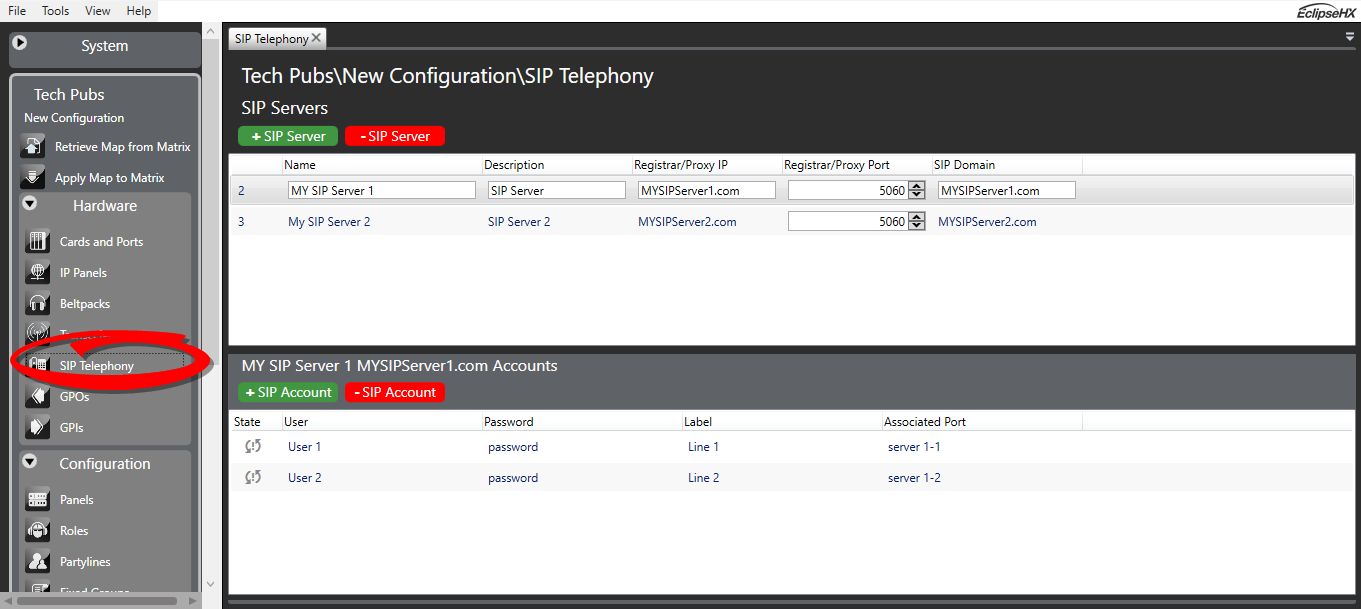
-
Click the green + button to add a SIP server
-
Input: Name, Description (optional) and Registrar/Proxy IP
-
When you move the cursor away from the Registar/Proxy IP field, the SIP Domain field is automatically populated.
| Note: | The Registrar/Proxy IP field must contain a Fully Qualified Domain Name (FDQN) or an IP address. This field will not accept an invalid entry. |
| Note: | If the SIP Domain field is edited and populated with a valid entry, it will override the Registrar/Proxy IP address field. SIP Domain is commonly edited if you are contacting a multi-tenant server. |
Set DNS on the E-IPA Card
If you want to address your SIP server using an FQDN, you can set a corporate DNS address on the E-IPA card to ensure connection from card to server.
To change the DNS address on the E-IPA card, navigate to: Matrix > Hardware > Cards and Ports > E-IPA Card [right click on card] > Card Properties:
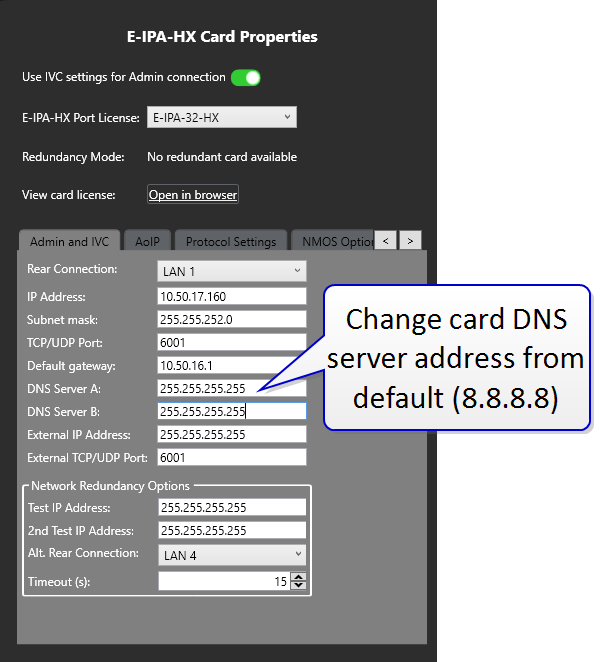
Apply Map to Matrix when done.
| Note: | At the time of writing, these fields (A and B) only accept an IP address. |
Add Accounts (SIP lines)
Before adding accounts to an E-IPA card, the accounts must be set up in the registered SIP server.
The account credentials (User and Password) must be exactly the same in the server and in EHX.
-
Click the green + button to add an account.
-
Fill in User, Password and Label.
| Note: | When you are adding a registration account, the user name many not be the same as the authentication ID. In this case, a # separates the user name from authentication ID in the User field: [name#authentication-ID]. |
| Note: | The Associated Port field will be populated when you assign this telephone line to a port in Cards and Ports. |
| Note: | Configuration must be downloaded to the matrix before use. |