Menu Options
These options apply only to V-Series and I-Station panels. For more details, see Panel Progamming.
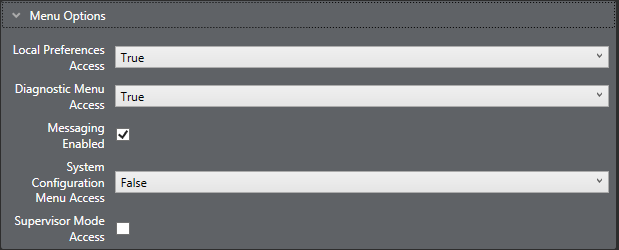
Local preferences access
Allow access to the local preferences menu via the local menu option. This allows access to audio level control, brightness settings, timeouts and crosspoint reset. Access may be enabled for all users (True), denied to all users (False) or controlled by the PIN number.
Select the option and click on the arrow to open the drop-down menu. Select the required access.
Diagnostic menu access
Allow access to the panel diagnostic menu via the local menu option. This allows some panel information to be displayed and access to panel reset and telephone line release functions. Access may be enabled for all users (True), denied to all users (False) or controlled by the PIN number.
Select the option and click on the arrow to open the drop-down menu. Select the required access.
Note: Only on V-Series Panels.
Messaging enabled
Allows V-Series panels access to the Messaging facility. This enables panel users to record messages that other users can hear when they talk to the panel.
This is commonly used in the commissioning / setting up of a system, or as an "out of office" / away from desk message. This feature is enabled by default.
Note: Only on V-Series Panels.
Dial Mode Access
Enables access to dial mode, where the panel has a dial pad for DTMF dialing. This is enabled by default.
Note: Only on I-Station Panels.
System Information Menu Access
Enables access to the System information menu on the panel. This allows the panel user to view major system settings. This is enabled by default.
Note: Only on I-Station Panels.
System configuration menu access
Allows access to the system configuration menu via the local menu option. This allows access to partyline, fixed group, remote panel, local panel, forced listen, input level and output level menus. Access may be enabled for all users (True), denied to all users (False) or controlled by the PIN number.
-
Select the option and click on the arrow to open the drop-down menu. Select the required access.
Note: Only on V-Series Panels.
Supervisor mode access
When 'Supervisor Mode Access' is enabled the panel has access to the Supervisor Mode via a new 'Supervise' key in the panel Menu. Alternatively, a special entity key 'SUPR' can be added directly to any page to access supervisor mode via the panel programming screen. For more information, see the V-Series Panels User Guide.
| Note: | The supervisor panel must be of the same key type as the panel it is controlling. |
You can select whether the labels on a panel supervising or being supervised are inverted or not. To do so:
-
Go to Configuration > Preferences > Panel & Key Operation.
-
Select or deselect:
-
Disable Supervisee Label Text Inversion check box
-
Disable Supervisor Label Text Inversion check box.
| Note: | Only available on V-Series Panels and V-Series IrisX Panels. |