Panel Options
These options are only available on ports that are configured as V-Series or I-Station panels.
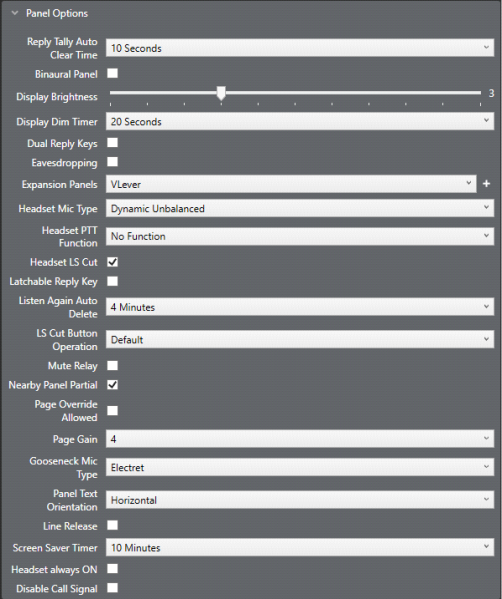
The following Panel options are available:
Reply tally auto clear time
The time a port name/tally LED shows on the reply key before it is cleared. To adjust the time, select and set the time as required. The time can be set from 1 to 60 seconds. Setting to off prevents the system from clearing the reply tally automatically. The default is 10 seconds.
Binaural Panel
This option applies to Partylines (conferences) on V-Series panels. It creates a binaural port as a sibling port that has customizable left and right stereo headset balance . A panel aux port will be created with default properties (the aux port hosts the audio for the right ear by default). Each panel must have one panel aux port enabled for binaural audio.
| Note: | If the Binaural Panel setting is cleared, the panel Aux port is removed. |
For an existing port, all hosted directs must be removed before Binaural panel is enabled.
For binaural panels, you can adjust the left and right stereo headset balance using a collapsible slider-control panel in the Panels screen. Binaural levels can also be set in the Mixer screen.
| Note: | When using role based sessions, the binaural setting must be enabled in Cards and Ports and in the role configuration (Roles > [select role] >Panel > Panel Options > Binaural) |
For more information, see Panel Programming
Display brightness
Sets the display brightness on panels that have a suitable display. To adjust the display brightness, select the brightness box to display the adjustment slider and use the mouse to drag the slider to the required setting. The brightness is adjustable from 0 to 10. The default setting is 3.
Note: Not available on Concert Panel.
Display dim timer
Sets the time interval in minutes before the display on an inactive panel is dimmed to extend the display's longevity. To adjust the time setting select the timer box and adjust to the required setting. The timer is adjustable from five seconds to 120 seconds.
Note: Only available on V-Series Panels.
Dual reply keys
Select this option to add a second Reply key to a V-Series Panel. By default, the second Reply key is added immediately to the right of the first Reply key. If this position is in use, a message is displayed allowing you to overwrite this key or to select a new location for the second Reply key. To select a new location, use the REPLY 2 special entity in panel programming.
Note: You can only reply to the last two calls. Calls are not stacked.
The following points apply:
-
If neither Reply key has incoming calls, the first Reply key is always populated first.
-
If both Reply keys have incoming calls, another incoming call replaces the older of the two original incoming calls.
-
If a Reply is latched, it will not be replaced by another incoming call.
-
If both Reply keys are latched, further incoming calls will be heard but will not appear on the Reply keys.
Note: Only available on V-Series Panels.
Eavesdropping enable/disable (privacy)
Available on panels and FreeSpeak beltpacks (FreeSpeak II and Edge)
When this is deselected, other panels cannot listen to (eavesdrop on) a panel’s microphone input, unless:
-
That panel has an active talk key pressed to another port in the configuration system
-
That panel has its mic enabled
If this box is checked, other panels can monitor a panel’s microphone input, even without any activated talk keys. By default, a panel’s microphone output is off until a talk key is pressed. The panel’s Mic ON/OFF control (mic mute) always takes priority over eavesdropping.
Default : disabled.
| Note: | FreeSpeak beltpacks do not have a mic mute control. Selected headsets for use with beltpacks do have a mic mute control. |
| Note: | Eavesdropping disable is not available on FreeSpeak II beltpacks before v. 8.5.2. |
| Note: | Eavesdropping must be enabled (checked) for a panel to act as an ISO destination so that the panel microphone can be remotely enabled by the ISO caller if it is not enabled at the destination. |
Expansion panels
Some types of panels can support multiple expansion panels. If this option is available selecting the expansion panel number attached box opens a menu showing the type of expansion panels that can be fitted to the host panel. The types of expansion panels listed vary according to the main panel type.
|
Main Panel |
Expansion Panel |
|---|---|
|
V12LD |
V12LDE |
|
V24LD |
V12LDE |
|
V12PD |
V12PDE |
|
V24PD |
V12PDE |
|
V12RD |
V12RDE |
|
V24RD |
V12RDE |
|
V32LD |
V16LDE |
|
V12LDD |
V12LDE |
|
V12PDD |
V12PDE |
|
V12RDD |
V12RDE |
|
i-Station |
E Station, V Station |
| Note: | V-Series IrisX Panels only support V-Series Iris expansion Panels. |
Headset mic type
The Headset Mic Type allows the type of headset microphone to be configured.
-
Panel: Dynamic Balanced, Dynamic Unbalanced (default) and Electret. This setting applies to headsets 1 and 2 on panels that support multiple headsets
-
Beltpacks: Dynamic (default), Electret, Automatic
| Note: | Only available on V-Series Panels. |
Headset PTT function
This allows you to use the headset on your panel for push-to-talk operations.
Options:
-
No Function (default)
-
Activate All Talk Keys. PTT activates audio paths on all latched talk keys. Non-latching talk keys are not activated
-
Activate Two-Way Radio. PTT activates audio paths on all latched talk keys connected to two-way radios (normally via a FOR-22 unit)
In the case of V-Series panels this function only relates to XLR-4 and XLR-5 type headsets that have been modified for PTT. V-Series XLR-7 headsets and headsets connected to the auxiliary audio connector use the logic 1 and 2 inputs (see Logic Input Options).
| Note: | Not available on Concert Panels. |
Headset LS cut
When enabled this facility automatically cuts the audio to the panel loudspeaker if a headset is detected. The default setting is enabled.
Note: Only available on V-Series Panels.
Latchable Reply key
This facility enables you to set the Reply Key as latchable. When it is latched, the Reply Key will not timeout. If you have stacked Reply Keys, a latched Reply Key is unlatched if you leave the Reply Key when navigating stacked keys with the up and down volume keys. The key is also unlatched after doing a red reset.
| Note: | If the incoming call is from a panel that has Global Options > Latch Disable checked, the Reply Key will not latch even if Latchable Reply Key is checked. If a different panel, without this setting, calls in this key can be latched. |
| Note: | Only available on V-Series Panels. |
Listen Again auto delete
The Listen again auto delete timeout sets the length of time in minutes before a message recorded in the listen again buffer is automatically deleted.
-
V-Series panels. Select between 1 and 100 minutes (1 min increments). Selecting Listen Again Off turns off Listen Again, so calls are not recorded
-
FreeSpeak beltpacks. Select between 1 and 240 minutes (30 min increments). Selecting Off turns of auto delete, so messages are not deleted. If the buffer becomes full, the recording will wrap around , overwriting earlier messages.
Note: Only available on V-Series Panels.
LS cut button operation
This configures the behavior of the V-Series Panel Loudspeaker (LS) Cut button. There are four settings available:
-
Default – the LS Cut button toggles between on and off. When on, the loudspeaker and auxiliary loudspeaker audio is muted.
-
LS Cut ON & Btn disabled – The loudspeaker and auxiliary loudspeaker audio is permanently muted.
-
LS Cut OFF & Btn disabled - The loudspeaker and auxiliary loudspeaker audio is permanently available.
-
ON & Btn disabled if HS detected - The loudspeaker and auxiliary loudspeaker audio is cut if a headset is detected and cannot be uncut until the headset is removed. Otherwise, the behavior is the same as Default.
Note: If the loudspeaker and auxiliary loudpeaker audio is cut, Page Override can temporarily enable it.
Note: Available on V-Series Panels and 2X10 Touch Desktop Panel.
Mute relay
If this is enabled, the local panel GPO mute relay is fired when a Talk only key is pressed on that panel. The default setting is false.
| Note: | This function is not active if you configure the V-Series Panel with a second additional sub-channel that has function Two-Way Radio, Partyline or HelixNet. |
Nearby panel partial
This attribute affects the way that Nearby Panels configured in Local Advanced operates. This function is used to prevent audio feedback (howlround) between panels located physically near each other.
The Nearby Panel Partial attribute is set to True (default setting) to enable audio from nearby panels to be routed to the headset. If it is not set, audio from nearby panels is cut completely to prevent audio feedback.
Note: Available on V-Series Panels and 2X10 Touch Desktop Panel.
Page override allowed
The panel main volume audio can be overridden by paging audio from another panel. The default setting is disabled. For Page Override to operate this must be set to True on any destination panel where the local main volume setting may need to be overridden by a calling panel. This is used in conjunction with Page Gain.
Page gain
Allows the Page Override gain to be set.
Select the required level. The level range is from 0 to 10. The default volume setting is 4.
This is used in conjunction with Page Override.
Note: Only available on Concert, V-Series and I-Series Panels.
Gooseneck mic type
The Gooseneck Mic Type allows you to select the panel microphone type.
There are three options:
-
Dynamic Balanced
-
Dynamic Unbalanced
-
Electret (default)
Note: Only available on V-Series Panels.
Panel text orientation
Determines the orientation of label text on V-Series Panels. There are three options:
- Horizontal
- 90 Degrees Anti-Clockwise
- 90 Degrees Clockwise
Note: Only available on V-Series Panels.
Line release
Allows the panel to release the selected telephone line which may be held on by the incoming caller anywhere in the system. The default is disabled.
Enhanced tallies
Enables the enhanced tallies for rotary panel displays.
Note: Only available on rotary V-Series Panels.
Keep hidden keys active
When enabled, the I-Station keeps calls on inactive shift pages alive. When disabled, any latched calls are ended when the user navigates away from the shift page. The default is disabled.
Note: Only available on i-Station Panels.
Screen saver timer
The screen saver timer facility sets the length of time before the screen saver is displayed on an inactive panel. The screen saver is used to prevent the display being damaged by being left for long periods with the same display. The time may be set to any value between 1 and 60 minutes. It cannot be disabled.
The screen saver timer only starts after the screen has dimmed. For example, if the dim timer is set to 1 minute and the screen saver timer is set to 1 minute the screen saver starts after 2 minutes.
Role based sessions:
When using role based sessions, screen saver timer can be set in both panel port properties and panel role properties. In this case, the role configuration is applied when the panel role is active.
Note: Available on V-Series Panels and 2X10 Touch Desktop Panel.
Headset always ON
This option forces the panel H/S button to be permanently ON. This means that a panel user cannot use a connected gooseneck microphone, even when a headset is not connected.
Note: Only available on V-Series Panels
Disable outgoing call signals
This option prevents a panel user from sending a call signal to another destination port.
Note: Only available on V-Series Panels.
Disable send level
This option is only available on rotary panels. It prevents a panel user changing the send level by pressing and holding the talk key and simultaneously turning the rotary control key.
Speaker Dim
Sets the dim level for the speaker when a talk key is pressed on the panel.
Note: Only available on I-Series panels and V-Series Panels.