Function Key Options
These options are only available on ports configured as V 32LD (32 Keys).
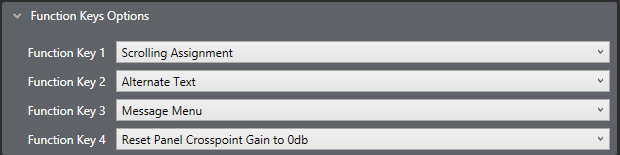
Use these options to specify how the function keys on 32 key V-Series Lever Panels operate.
The table below shows the default options.
For each of the four function keys (1 to 4), you can select from the following functions.
|
Function |
Description |
Function key LED behavior |
|---|---|---|
|
Activate All Pre-Selected Talk Keys |
When this option is selected, no configured audio routes are activated for latched keys until the associated function key is pressed (and held). |
LED is on while the key is pressed. |
|
Activate All Pre-Selected Two-Way Radio Talk Keys |
When this option is selected, no configured audio routes to two-way radios are activated until the associated function key is pressed (and held). |
LED is on while the key is pressed. |
|
Activate Configured Action |
This option allows the user to allocate a control sequence or macro to a function key. Use the EHX configuration software to generate control sequence. |
LED is on while the key is activating the control sequence. Note: this is not the same as indicating when the control is active, if the control is activated via another means then the LED will not be lit. |
|
Reset Panel Crosspoint Gains to OdB |
Opens the Reset Xpts (Yes/No) dialogue box. Selecting Yes resets the volume adjustment on all incoming audio sources to 0dB. |
LED is on while the Reset Xpts menu is open. |
|
Alternate Text |
Enables/disables the Alt Text mode on the panel. Pressing this key will cause the key displays to show alternative text. Press the key again to return to standard text. |
LED is on while the Alt Text mode is enabled. |
|
Scrolling Assignment |
When this option is selected, pressing the function key will result in all keys programmed with Sort Groups flashing. You can then use the up and down keys on the Keyset controls to scroll through group members. When a group member is visible in the key display, Talk and Listen to that member. |
LED is on while Scrolling Assignment mode is enabled. Pressing the function key again will exit from scrolling assignment mode. This key has a 10 second timeout. |
|
Supervisor |
When this option is allocated to a function key, pressing the key will enable the first stage of Supervisor mode. See Supervise mode in the Eclipse V-Series User Guide. |
LED is on while Supervise mode is enabled. To exit Supervise mode, press and hold the Menu key. |
|
Message Menu |
Access the menu that allows you to control message function options. |
LED is on while the Message Menu is open. |