Configuration Options
You can configure each matrix using the matrix menu configuration options. To access these, right-click the matrix icon, and select Configuration. The options and sub menus are:
-
Configuration Manager
-
Create a New Configuration
-
Retrieve a Configuration from Matrix Frame
-
Configuration Banks
-
Backup Key Status
-
Restore Key Status
Configuration Manager
Use the Configuration Manager to save, load, import and export configurations. You can also protect configurations through password protection. A configuration contains details of matrix hardware setup, ports and audio routing. It does not contain details of the matrix IP address.
-
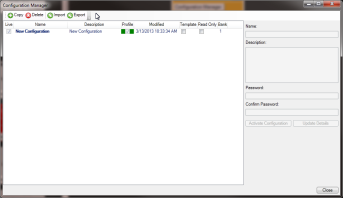
In the System pane, right-click the matrix icon, and select Configuration > Configuration Manager. The following screen appears:
-
Edit the name of the configuration map. You might also want to enter an optional description and configuration password.
Note: The configuration name can only contain alpha-numeric characters.
-
Select the Read Only checkbox if this configuration is to be fixed as read-only.
-
Select the Template checkbox if this configuration is to be used as a basis for creating new configurations, by opening the configuration and saving it as a new project.
The Profile column is color-coded:
-
Green indicates the configuration can be applied without a reset.
-
Red indicates a full reset is required (clearing the matrix memory after applying a configuration). Such a reset may break trunk tables, and is undesirable in a multi-user multi matrix system.
The profile of a matrix describes how it interacts with other matrices in a linked system. This column indicates whether the selected configuration matches the existing matrix profile or whether it affects other matrices in the linked system.
-
Click Update Details to update the configuration map details without closing the Configuration Manager screen.
-
If multiple configurations are available (if configurations have been copied or imported), select the configuration you wish to use or edit, then press Activate Configuration to confirm.
| Note: | Clear-Com recommends regular maintenance when using multiple configurations to ensure that configurations have the same matrix card sets. |
Create new configuration
You can create a new configuration which may be empty, or which contains only the hardware discovered from the matrix.
To create a new configuration:
-
In the System pane, right-click the matrix icon, and select Configuration > Create New Configuration, and then select either Discover Hardware or Empty.
-
Select Configuration > Create New Configuration and then either Discover Hardware or Empty.
-
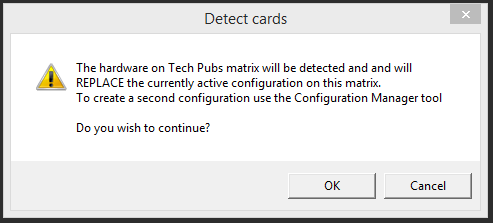
If you select Discover Hardware, a warning message appears before the current hardware configuration is replaced (see below). To continue, click Yes. EHX interrogates the matrix to obtain the current hardware configuration.
-
If you select Empty, the configuration is created with no hardware or configured devices.
Retrieve or apply configuration from matrix
You can retrieve or apply the last retrieved configuration, including labels, from the matrix. This option is a backup facility that enables you to retrieve the last applied configuration from the matrix (provided one has been loaded).
To retrieve the last applied configuration from the matrix, in the System pane, right-click the matrix icon, and select Configuration > Retrieve Map from Matrix. The following screen appears:
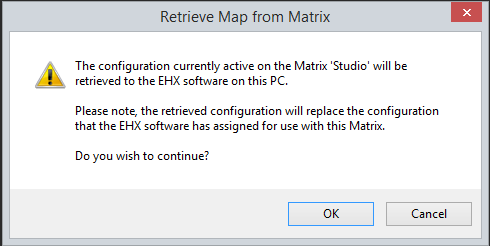
The configuration uploads to EHX from the matrix.
| Notes: | When you retrieve a configuration, it will overwrite any currently active configuration. This also applies to NEW EMPTY configuration and NEW DETECTED configuration. In all three cases, the current configuration is removed and replaced with what you have requested. |
| Retrieving the configuration will NOT upload any Intelligent Link connections that were previously defined on the Layout Screen. |
Back up key status
Use this option to upload and store a record of all panel talk and listen key states on the EHX matrix.
This function also saves the states of the panel microphones, panel headsets and panel loudspeakers. For example, you could use this facility to record the state of talk and listen keys prior to an Apply changes with reset and clear all memory of the matrix or as a known state prior to a production.
In the System pane, right-click the matrix icon, and select Configuration > Back up Key Status.
This function is used in conjunction with the Restore Key Status function (see below).
Restore key status
Use this option to download a previously saved record of the state of talk and listen keys to the matrix to restore the talk and listen keys to their previous states.
This function also restores the states of the panel microphones, panel headsets and panel loudspeakers.
In the System pane, right-click the matrix icon, and select Configuration >Restore Key Status.
This function is used in conjunction with the Back up Key Status function (see above).
Firmware options
Use the Firmware options to:
-
Update firmware on this matrix.
-
Request a firmware report that contains the details of all the firmware versions on the matrix cards and attached panels which support the function.
| Note: | You can also update the firmware from the Tools menu, by selecting Apply Firmware To Matrices. |
To display a firmware report, in the System pane, right-click the matrix icon, and select Firmware > Firmware Report. The firmware report consists of a System Versions Summary and a Detailed Firmware Version Listing.
The firmware versions are listed in a text window and can be exported to a *.csv file. This file type is usually opened by spreadsheet programs, such as Excel. An example of a firmware report is shown in the image below.
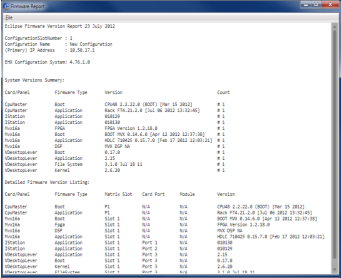
The report provides a summary of the firmware versions, followed by a detailed list for all devices that provide this information.
| Device | Firmware information listed | |
|
CPU card |
CPU cards list the boot PROM version, the application version, the versions of the CPLDs and the current settings of the DIP switches. |
|
|
MVX-A16 card |
MVX-A16 cards list the application version and HDLC version. |
|
|
Fiber card |
Fiber cards list the FPGA version. |
|
|
E-QUE, IVC-32, LMC-64 cards |
Cards list the boot code version, the FPGA version and the application version. |
|
|
E-MADI64-HX |
E-MADI cards list the boot code version, the FPGA version, the DSP version, and the application version. |
|
|
E-DANTE64-HX card |
App, Boot, DSP and FPGA versions. Also, a combined Dante module file, .dnt extension. |
|
|
E-IPA-HX card |
App, boot and FPGA. |
|
|
V-Series panel |
V-Series main panels list the boot code version, the application version, panel kernel version and the file system version. V-Series expansion panels only list boot and application versions. |
|
|
i-Series panel |
i-Series panels report the application version. |
|
|
ICS-1008/16 panel |
ICS-1008/16 panels report the application version. |
|
|
ICS-22 panel |
ICS-22 panels report the application version. |
|
|
FreeSpeak Transceiver/antennas |
App, boot, hardware version. |
|
|
Online FreeSpeak II beltpacks (since the last black reset) |
App, boot, hardware version, role. |
|
User access control
Each matrix in a project can be protected from access by unauthorized user accounts. This is controlled using tick boxes listing the available users, and whether they are permitted to change the selected matrix. You can choose between access to the matrix for:
-
Everyone
-
Administrator
-
Selected user
Change IP settings
You can use this feature to change the matrix IP settings. The following screen appears:
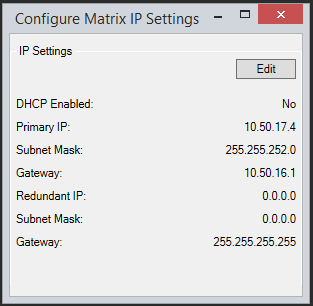
Click Edit to change the settings.
Show matrix redundant IP address
You can use this feature to display the matrix redundant IP address.
Delete matrix from project
You can remove matrices from the project using the right-click menu.
-
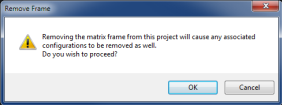
In the System pane, right-click the matrix icon, and select Delete Matrix from Project. The following warning appears:
-
To continue, click OK.
When the operation is complete, the matrix icon is deleted from the System pane.
Matrix filtering
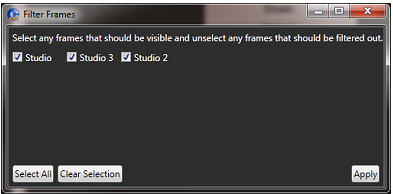
If there are many matrices in a project, it is possible to select which matrices are visible and configurable in the Palette. If there is more than one matrix in the project, the Configure Filters button is visible in the top left of the screen.
-
Select Configure Filters, the following screen appears.
-
Deselect any matrices that you do not wish to be visible in the Palette.
Note: You can also place the cursor over the matrix icon, right-click and then select to filter or unfilter a matrix.
-
Select Apply. You return to the Palette.
| Notes: | Deselecting a matrix does not remove it from the project. |
| Entities from filtered out matrices do not show on screens for non-filtered frames. For example, if you filter matrix 2, then go to, say the fixed groups screen on matrix 1, you do not see any entities from matrix 2. This is only true for entities that are available to be assigned - you always see already assigned entities (existing group members) whether they are filtered or not. In addition, panel programming maintains a separate list of filters. |