Network Groups
You can organize your IP panels and IP Transceivers in one or more Network Groups. This might make it easier to manage your network and to diagnose and correct any network-related problems. For example, if all your devices on one Network Group share the same router, failure of all these devices is likely to be a fault in that router.
If you create Network Groups, these groups and the devices they contain are visible in the PTP Network screen. See PTP Diagnostics.
To add a device to a Network Group:
-
From Hardware > Cards and Ports, select the device that you want to add to a Network Group.
-
Select Basic Options and then select Network Group.
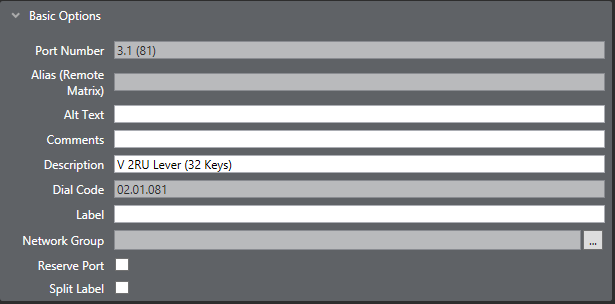
The Network Group window appears.
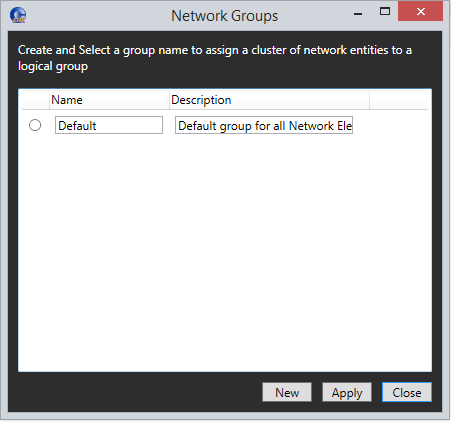
If you have not yet created any Network Groups, a default group is shown.
-
Change the Name and Description of the default group as required.
-
Click Apply.
-
If you require a new Network group, click New.
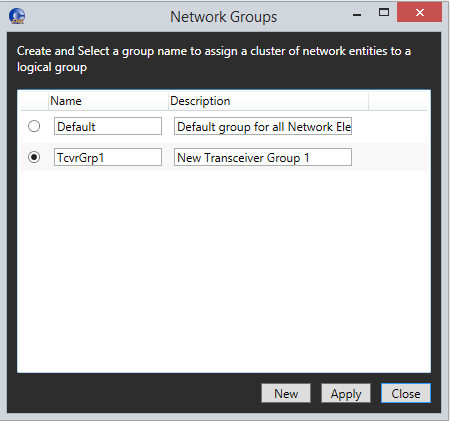
A new Network Group appears in the Network Groups window.
-
Change the Name and Description of the new Network Group as required.
-
To delete a Network Group, select the group, right-click and then select Delete.
-
When you have finished editing the Network Groups window, click Close.