Intelligent Linking (Trunking)
As many as 64 separate Eclipse HX-Omega, Eclipse HX-Median, Eclipse HX-Delta and Eclipse HX-PiCo system matrices can be intelligently linked, using dedicated audio trunk lines and an Ethernet network. Audio travels between the matrices on the dedicated trunk lines, while control data travels on the Ethernet network.
When intelligent linking is enabled, multiple sources from one matrix are mixed on one or more trunks that connect to the destination matrix. When intelligent linking is not enabled, multiple sources from one matrix are never mixed on trunks. Any mixing of audio takes place only on the destination matrix.
You can intelligently link Eclipse HX matrices using:
-
Fiber-optic connections (using E-FIB fiber cards).
-
Four-wire connections (using MVX-A16 analog cards).
-
E1/T1 connections (using E-QUE cards).
-
MADI connections (using E-MADI64 cards). When using E-MADI64 cards, ensure that Trunk Port 1 on the first card is connected to Trunk Port 1 on the second card, and similarly for Trunk Port 2.
-
IP trunks/directs between two IVC-32 cards in separate matrices (see Parent Port).
-
IP to 4-wire trunks using IVC-32 cards and LQ devices.
-
IP trunk/direct between E-Dante cards on separate matrices (use E-Dante64-HX cards and Dante controller to set up connections.
| Note: | Fiber, E1/T1, MADI, DANTE and IP trunks/directs linking is only available to Eclipse HX-Omega, Eclipse HX-Median and Eclipse HX-Delta matrices. |
You can intelligently link Eclipse HX-PiCo matrices using:
-
Four-wire connections.
-
The PiCo-link to PiCo-link.
-
Omega, Median, Delta matrices with IVC-32, and LQ devices.
| Note: | PiCo-link is only available for Eclipse HX-PiCo to Eclipse HX-PiCo connections. The PiCo-link does not support hopping. |
The sections below on Fiber trunking and Four-wire trunking provide a basic overview of the intelligent linking process. For more information, see:
-
The relevant matrix user guide.
-
Eclipse HX Installation Guide.
If you add or remove trunk lines, you might see the following message:
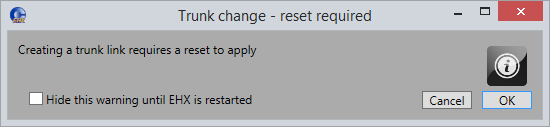
Click OK to continue.
If you add or remove intelligent links, and then apply your configuration to a matrix, you might see the following message when you apply changes to the matrix:
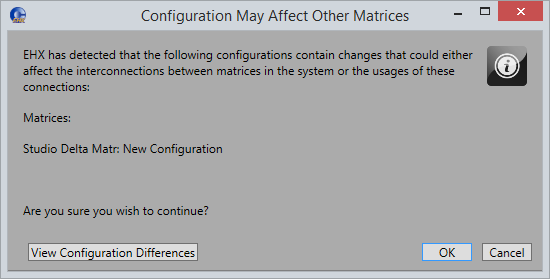
Click View Configuration Differences to see a list of changes that affect the intercommunication between matrices. You are advised to Apply Changes to all matrices.
Click OK to continue or Cancel.