Crosspoints
The crosspoint area of the audio mixer displays all the crosspoints available for the current configuration and the status of the crosspoint.
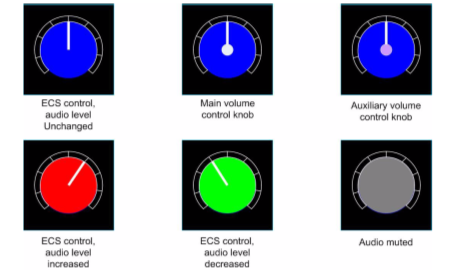
Each crosspoint allows individual setting of the input and output audio between the audio source in the input section and the Asia destination in the output section. Each crosspoint is displayed as a dial with color coding to show the status of the crosspoint. The color codes are:
-
Grey - crosspoint is muted so no audio passes through the crosspoint.
-
Blue - audio level gain is set to 0dB or controlled by a volume knob.
-
Green - audio level is reduced in the crosspoint (gain level is negative for example, -3dB).
-
Red - audio level is increased in the crosspoint (gain level is positive for example, +3dB).
-
Blank - no crosspoint.
The center of the dial is also color coded when appropriate to indicate whether the audio level is being controlled by software only or by the panel volume controls. The settings are:
-
No colored center - audio levels are set in software only.
-
White center - audio level is set by main volume control knob.
-
Mauve center - audio level is set by auxiliary volume control knob.
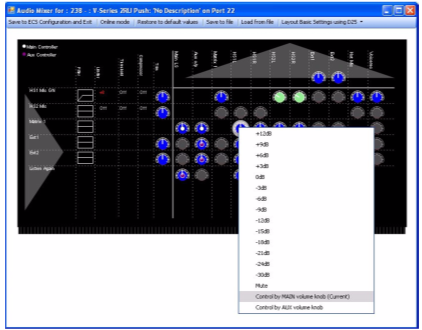
Right-clicking on a crosspoint dial displays a list of options for setting the crosspoint.
If an additional yellow ring is displayed on the crosspoint dial this indicates that the crosspoint is also used by locally generated panel IFBs. If the panel IFB is activated the audio output from the crosspoint mixer is reduced (dimmed) by the specified amount.
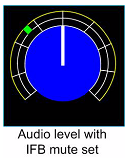
The colored segment in the outer dial indicates the dim setting for the IFB (the amount by which the source audio is dimmed when the IFB control is activated). This is set by right-clicking on the dial and selecting the required IFB level. The panel IFB is activated using a control set up in Control Manager.
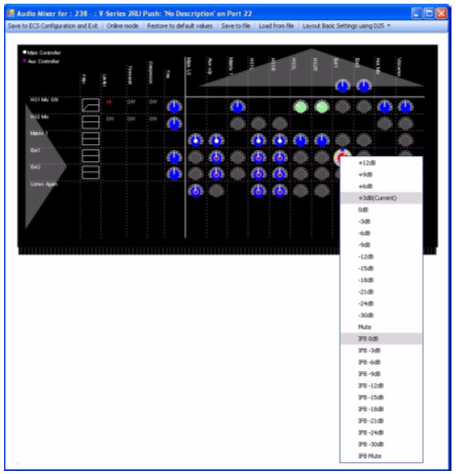
The level settings from +12dB to -30dB represent the levels set for audio through the crosspoint, and Mute stops all audio through the crosspoint. Below this are the IFB dim levels from 0dB to -30dB and Mute (IFB completely interrupts audio feed).
Setting Up V-series panel audio mixing IFBs in imported configurations
When an EHX 4.2 map is imported the IFB control information V-Series panels is lost due to changes in the way the configuration data is organized. To restore the IFBs and restore the control information:
-
Open Panel Programming from the Configuration menu.
-
Select the V-Series panel that the IFB control was originally attached to.
-
Open the Audio Mixer.
-
Use Audio Mixer to set the IFB dimming for EXT1 and EXT2 crosspoints as required. This action creates Panel IFB relays IFB1 and IFB2 for that panel.
-
Close the Audio Mixer.
-
Open the Control Manager.
-
Select the Panel IFB relays tab. The available IFBs are displayed.
-
Select a control or create a new control.
-
Use the Control Manager to attach the IFB to the control.
-
Close the Control Manager.
-
In panel programming the control is now available under the Controls tab to be assigned to a key on the panel in the normal way.