Assigning a Panel in IVC Mode to a Card Port
To assign panels to ports on a card, drag the panel icon from the IP Panels pane to the assignment zone on the card. The following screen appears:
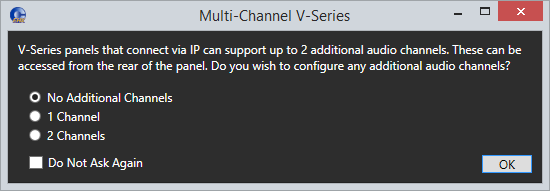
Select the number of additional channels you require. If you select one or two additional channels, these channels automatically appear as Hosted Direct in the Port Function column of the Cards and Ports screen.
Panels can also be moved from one port to another. The results of the action depend on the status of the panel.
-
Moving (assigning) a panel to a port on the card only adjusts the current user ID in the panel if no user ID in the panel currently exists. In this case a unique user ID is used as the user ID of the connection. The password on the connection is left blank. This initial state of the panel represented by the blue color and indicates that the panel is known to be out of use and ready for assignment.
-
If a current user ID setting already exists on a panel it is not adjusted during an assignment. If the panel is used in another currently inactive Eclipse configuration this association would now have been broken.
-
When a panel is not used by the current configuration but has a user ID (even though this may be a stale configuration) and the matrix IP address is in the current configuration, the panel is shown as red. Take care before using this panel, for example, check its current usage before assigning it
-
If a panel's matrix IP address is not in the current configuration and a user ID is set the panel is shown as grey to indicate it is configured for use on another system. In this state, only a user logged in as administrator (in EHX) may assign it to a card in the currently active configuration.
-
To un-assign a panel that has been assigned to a port on a card, simply drag the panel off the port and drop it in the blank area to the right of the cards.