Adding and Deleting Fixed Groups
To create a Fixed Group and assign members to that group, do the following:
-
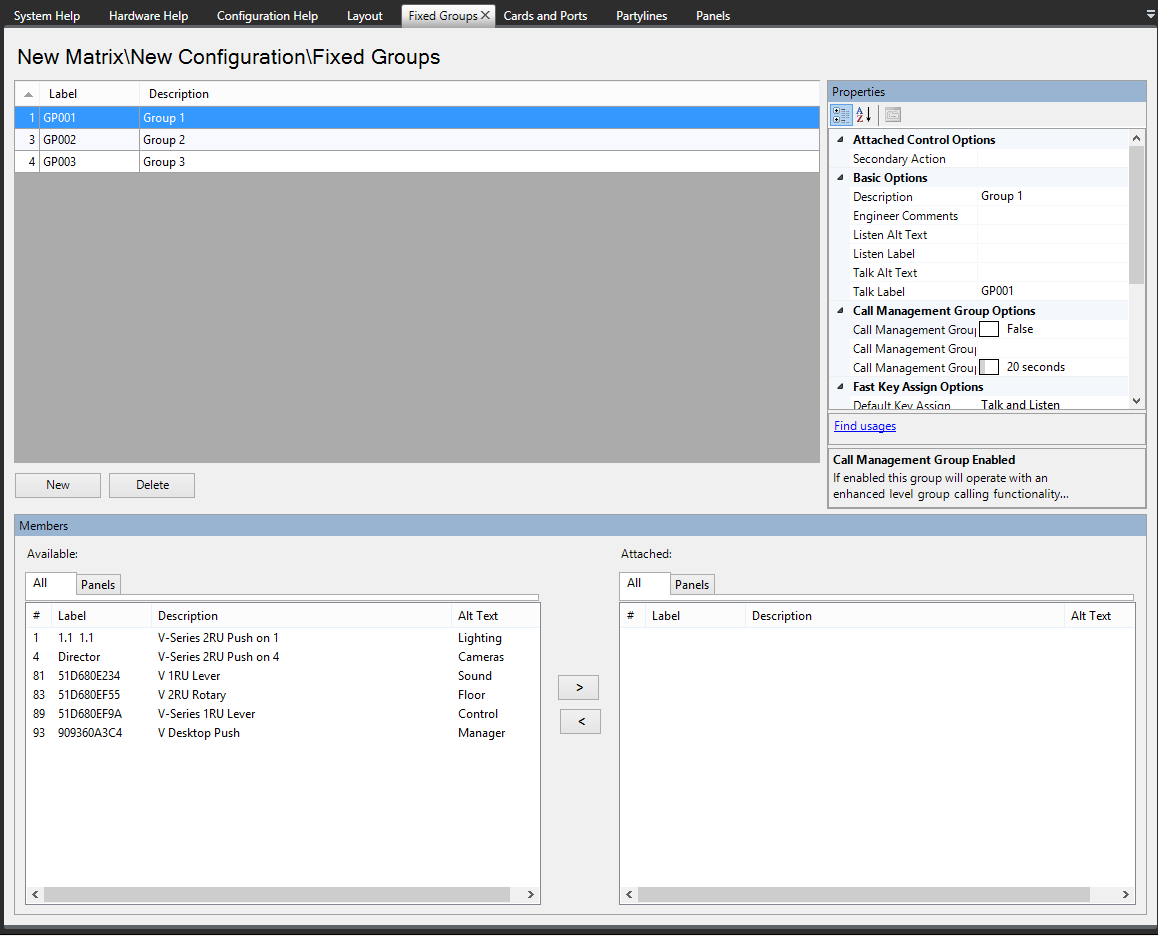
Open Configuration > Fixed Groups.
-
Select the New button at the bottom left of the Groups window (top left window of the screen).
-
Change the Label and Description fields as required.
-
To add members, select the required members from the Available window (bottom left of the screen) and click on the > in the section between the lower windows to transfer the members to the Attached window in the bottom right of the screen.
Alternatively double-clicking on the required item transfers it to the Attached window. Also right-clicking on a member of the Available group displays a menu allowing it to be attached.
The # button on the Available and Attached panes sorts the members by port number in ascending or descending order, preceded by non-port items such as controls.
The Label button sorts the members by name alphabetically and the Description button sorts the members alphabetically by description. The tabs above the Available and Attached panes filter the members by type.
-
To remove members from the group select the members to be removed in the Attached window and click on the < symbol in the central section to return them to the Available window.
Alternatively double-clicking on the required member moves it back to the Available group. Also right-clicking on a member of the Attached group displays a menu allowing it to be detached.
| Note: | If you add or remove remote members in a fixed group, you might see the following message when you apply changes to the matrix: |
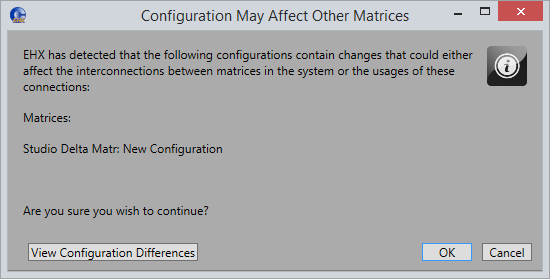
Click View Configuration Differences to see a list of changes that affect the intercommunication between Matrices. You are advised to Apply Changes to all Matrices.
Click OK to continue or Cancel.
Fixed Groups can be made up of local and remote members.
| Note: | If you select a fixed group and select Find Usages in the Properties Pane, a list of panels or routes that are assigned to this fixed group appears. |
To delete a group:
-
Select Configuration > Fixed Groups. This opens the Fixed Groups configuration screen.
-
Select the group to delete and click Delete.