Logging into EHX
Client-only mode
-
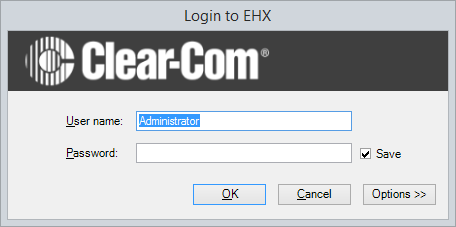
From the Windows Start menu, select All Programs > Clear-Com > Eclipse HX Configuration System. The EHX user login screen is displayed (see below). If you are logging in for the first time, the default username (Administrator) is already entered for you. No password is required on initial login
-
Click OK.
When logged in to EHX, you can use the User Management facility to change the password for the default user and add further users (see Importing your Projects and Configurations into EHX.
Client-Server mode
If you are running EHX in Client-Server mode, you must enter the address of the remote server before logging in.
To log into EHX in Client-Server mode:
-
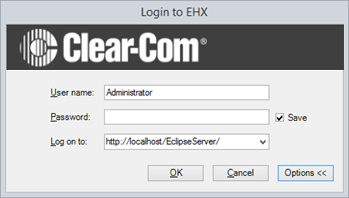
From the Windows Start menu, select All Programs > Clear-Com > Eclipse HX Configuration System. The EHX user login screen is displayed (see below). If you are logging in for the first time, the default username (Administrator) is already entered for you. No password is required on initial login.
-
Click Options.
-
Enter the address of the remote server to log into (for example, http://RemoteHost:80/EclipseServer). RemoteHost is the machine name or IP address of the machine running the EHX server software.
-
Click OK.
| Note: | The same versions of EHX must be installed to both the client and the server. |
First screen after log in
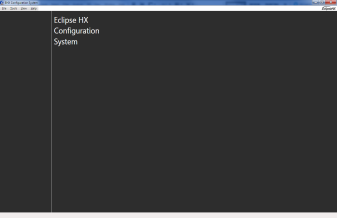
After successfully logging in (either locally or to a server) the EHX initial screen is displayed.
Identifying the EHX version
-
To identify the version of EHX, select Help > About on the Windows toolbar.
| Note: | The operational mode of EHX (Client-Only or Client-Server mode) is displayed, as well as the version of EHX. |