ST 2022-7 Seamless Protection Switching (Red/Blue Redundant Networks)
EHX v. 14.0 and upwards
Introduction
SMPTE ST 2022-7 is used for redundancy and performance.
The standard defines requirements for multiple redundant streams of audio and video RTP packets to allow for the creation of a single reconstructed output stream through seamless protection switching at the RTP datagram level (seamless protection switching).
When ST 2022-7 is enabled, a second, identical copy of the data is sent or received. This can mitigate the loss of one network path, as well as pick up packets that have not arrived for any reason.
2022-7 redundancy can be used with both Clear-Com's AES67 solutions;
-
the E-IPA-HX card
-
the E-Dante64-HX card
| Note: | Ensure that you have sufficient SMPTE 2110 port licenses for the E-IPA-HX card before setting up red/blue redundant networks (the E-Dante card does not require licenses). |
Example
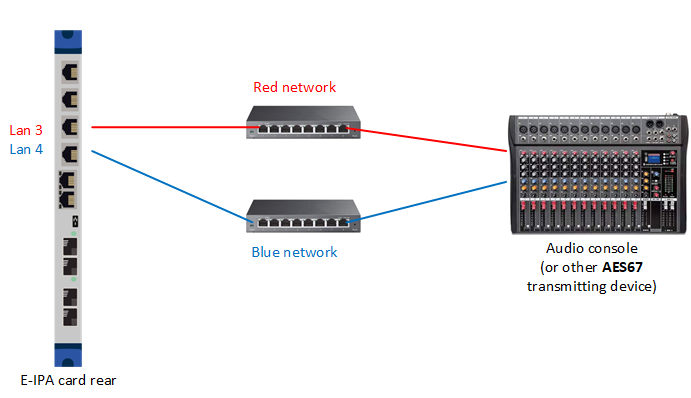
Notes:
-
When 2022-7 redundancy is enabled, other AES67 redundant connections on the card are disabled
-
2022-7 can connect to 3rd party AES67 devices or E-IPA AoIP Directs and the E-Dante-HX card
-
Clear-Com IP transceivers and AES67 capable panels do not support this type of network redundancy and must be connected to the Primary network only
-
Session Announcement Protocol (SAP) is automatically disabled if you enable 2022-7
-
2022-7 can be used with, or without, NMOS and/or Single Source Multicast (SSM)
-
For information on setting up AES67 networks, see the Clear-Com AES67 Network Recommendations Guide available from the Eclipse-HX Knowledge Center
Enabling 2022-7 on an E-IPA Card
-
In EHX, navigate to Matrix > Hardware > Cards and Ports > E-IPA Card > Card Properties [select E-IPA card and right click]
-
Select the AoIP tab
-
Using the toggle button, click to enable SMPTE 2022-7
-
Assign a LAN connector to the primary network (default LAN 3)
-
Assign a LAN connector to the secondary network (default LAN 4)
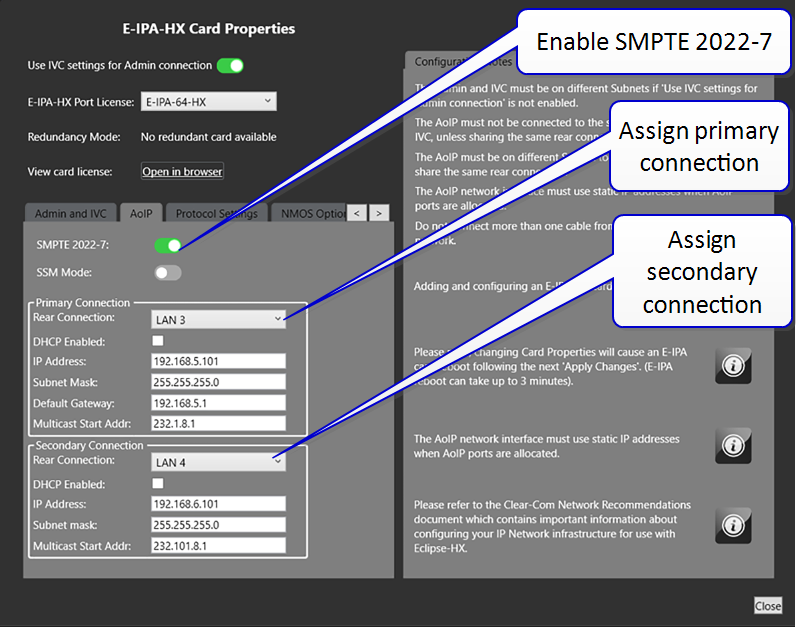
You need to set IP addresses for each network, including a primary and secondary multicast address, if you do not wish to work with the default multicast IP settings.
Once you have set the Multicast Start Addr, the system will automatically allocate consecutive addresses for each configured channel. Therefore, take into account the number of streams and channels you are setting up when considering the multicast starting address.
| Note: | Addresses designated for any source multicast (ASM) are in the range 224.0.0.0/8 through 239.255.255.255/8. Addresses in the form xxx.0 are reserved and cannot be used. |
| Note: | If SSM is enabled, you are expected to work within the designated IP range for SSM: 232/8 (232.000.000.000 to 232.255.255.255). For information on SSM see Source Specific Multicast in this manual. |
| Note: | If 2022-7 is enabled, primary and secondary addresses must be unique and each IP and UDP port combination must be unique. |
| Note: | Do not enable DHCP. |
When you have enabled 2022-7 and set the network details, create ports in the usual way in Cards and Ports. Port type must be Direct (AoIP Stream). When the configuration is downloaded to the matrix, EHX will be broadcasting and listening for 2022-7 AoIP streams on the network.
Streams and stream headers can be viewed and edited in:
-
The SDP Viewer, found in the E-IPA Card Properties > Protocol Settings
-
AoIP Port Properties
| Note: | When 2022-7 is enabled, Session Announcement Protocol (SAP) is not enabled on the Primary and Secondary AES67 interfaces. If you are not using NMOS, to exchange SDPs you will need to manually copy/ paste/import/export SDP header files between EHX and the other audio devices on the network . |
2022-7 SDP header files
When you look at an SDP file for a stream that has been enabled for 2022-7 you will see that details for both streams are included:
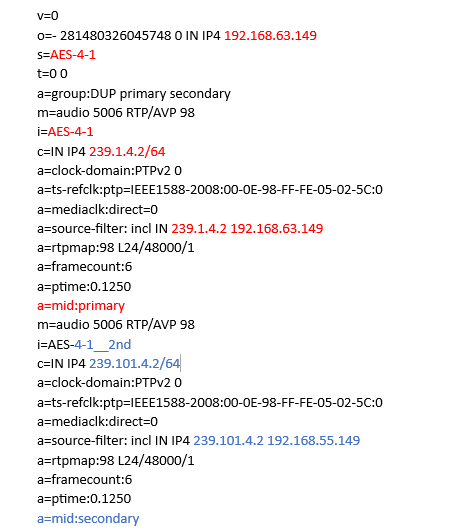
| Note: | PTP settings such as packet time and clock domain are the same in each stream . |
SDP files can be viewed and copied to a text file if required in:
-
AoIP Port Properties
-
The SDP Viewer
-
To see the SDP viewer, navigate to:Matrix > Hardware > Cards and Ports > E-IPA-HX Card > Card Properties (right-click or double-click on the card icon) > Protocol Settings > OpenViewer
-
2022-7 Redundant Networks with an E-Dante card
The E-Dante card is able to connect to any 2022-7 enabled network.
When setting up red/blue redundant networks in EHX using an E-Dante card, the majority of configuration is done in Audinate user interfaces, so you must also be familiar with Dante Domain Manager and Dante Controller.
-
Primary and secondary IP addresses need to be set in Dante Domain Manager and Dante Controller, including multicast addresses
-
SAP is not enabled in EHX for use with 2022-7 redundant networks. Therefore, you must manually copy and paste the SDP header files from streams (Audinate UI) to enable stream connection
Configuration specific to EHX:
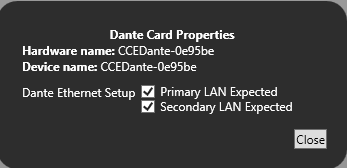
The E-Dante card is designed to work with primary and secondary networks, so all you need to do is enable the secondary network connection on the card:
-
Enable the secondary network connection on the E-Dante card in Matrix > Hardware > Cards and Ports [right click on card] > Card Properties:
-
Configure ports (Cards and Ports) on the E-Dante card (max 64)
-
Apply map to matrix
2022-7 Monitoring and Reporting
When AES67 redundancy (2022-7) is enabled in an EHX project, connectivity on both primary and secondary networks is monitored in the EHX Monitoring screen.
In EHX, navigate to Matrix > System > Monitoring and click the Group by: Type tab.
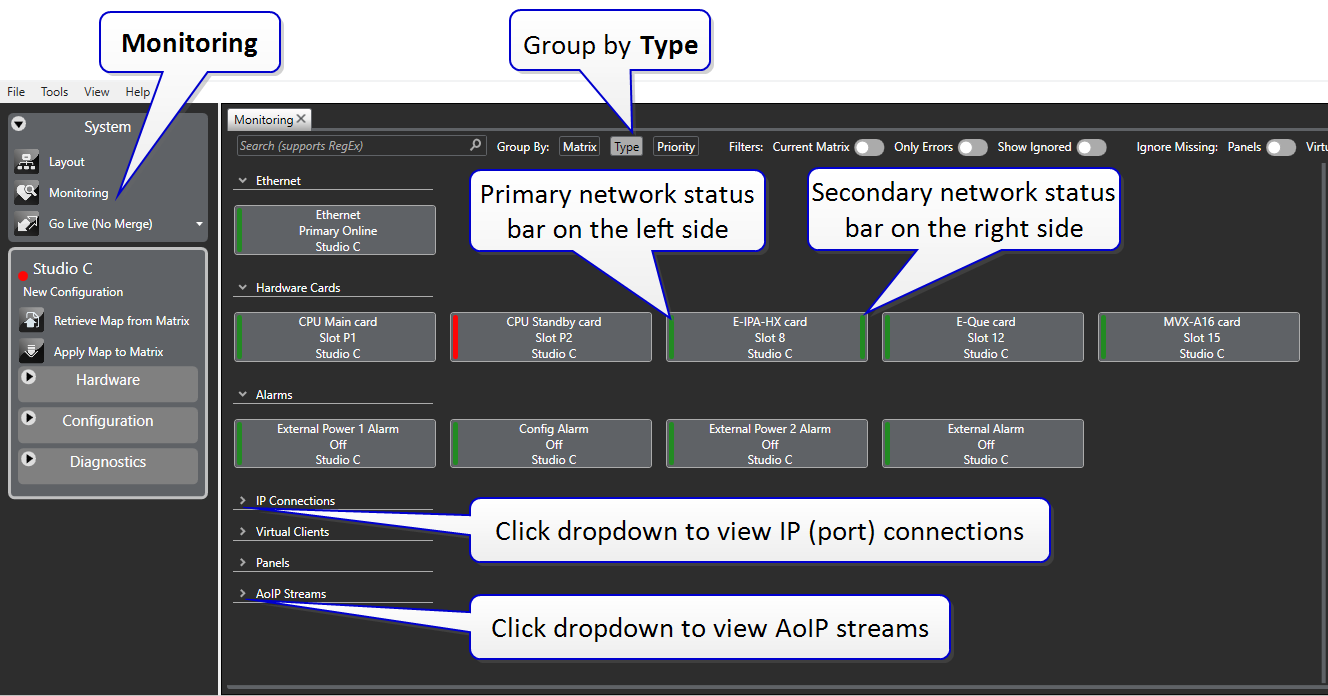
Select an E-IPA card tile and the card connectivity details of both Primary and Secondary LANs are shown on the right-hand side of the monitoring screen:
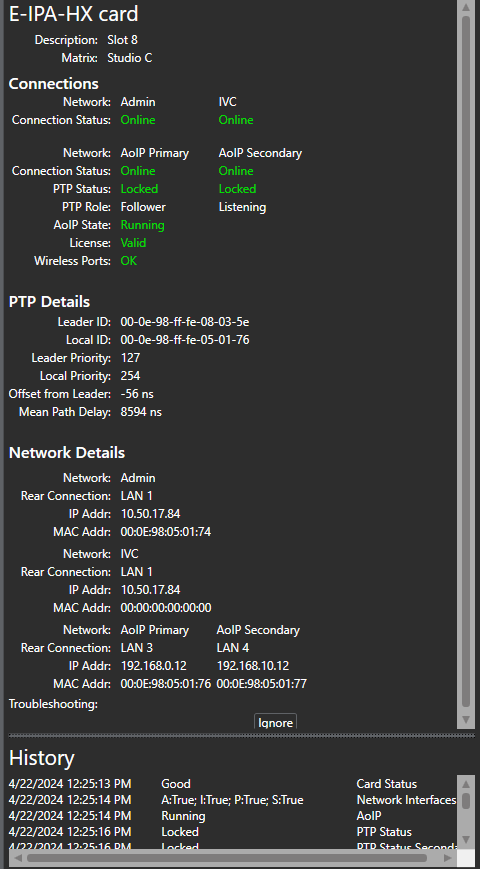
Color Key - 2022-7 enabled E-IPA card
| Audio? | Primary | Secondary | Primary State Color | Secondary State Color |
|---|---|---|---|---|
| Yes | Good | Good | Green | Green |
| Yes | Invalid license | Invalid license | Amber | Amber |
| Yes | Excess wireless | Excess wireless | Amber | Amber |
| Yes | Good | Awaiting PTP lock | Green | Medium purple |
| Yes | Good | Offline | Green | Red |
| Yes | Awaiting PTP lock | Good | Medium purple | Green |
| Yes | Offline | Good | Red | Green |
| No | Awaiting PTP lock | Awaiting PTP lock | Medium purple | Medium purple |
| No | Awaiting AES boot | Awaiting AES lock | Dark purple | Dark purple |
| No | Offline | Offline | Red | Red |
| Note: | Amber and red are warning states and require action. |
| Note: | On AoIP streams you will see a bright yellow color (brighter than amber). This color indicates that the stream is connected on one network only, not both. It is not an error state as this will not affect audio. |