Setting the Port Function
To set the port function:
- Click the Port Function field. A drop-down menu is displayed.
- From the drop-down menu, select the desired device (user panels and interfaces that may be connected to the port).
The available device types are listed below:
|
|
V 1RU Rotary |
|---|---|
| 2X10 Trilogy touch panel |
V 1RU Push |
| Concert panel |
V 1RU Rotary |
|
Direct |
V2RU Lever (24 keys) |
|
Empty |
V-2RU Lever (32 keys) |
|
Hosted Direct |
V 2RU Push |
|
LQ |
V 2RU Rotary |
|
LQ SIP |
V Desktop Lever |
|
LQ Trunk |
V Desktop Push |
|
Virtual Client |
V Desktop Rotary |
|
Trunk |
|
|
V 1RU Lever |
|
| Note: | If you right-click on a port and select Find Usages, a list of other EHX entities which refer to the port is given. |
If you add an IP-enabled V-Series panel, the following screen appears:
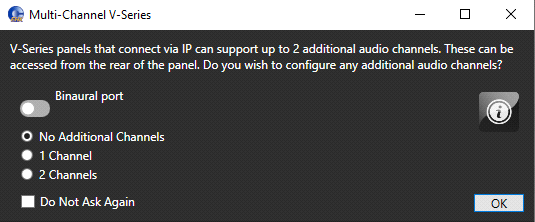
Select the number of additional channels you require. If you select one or two additional channels, these channels automatically appear as Hosted Direct in the Port Function column of the Cards and Ports screen, for example:
| Note: | Select Binaural port to enable binaural Partyline audio. The selector will change to 1 channel and apply the required mixer settings. If you change the number of additional channels to zero or two, the Binaural port setting is cleared. |
If you add an LQ port, a GPO is added to the EHX configuration. This appears in Hardware > GPOs, and in the Interface relays tab of Configuration > Controls.
| Note: | Hosted direct ports are indented from their host ports in the Cards & Ports screen. |