Installing a Virtual Machine on your PC
You require a virtual machine for each handheld device that runs Dynam-EC.
Each virtual machine requires approximately 2 Gigabytes of RAM. Before installing virtual machines, ensure that you have sufficient memory. For example, with 8 Gigabytes of RAM, you could install up to three virtual machines and retain 2 Gigabytes of RAM for other applications.
To install a virtual machine:
-
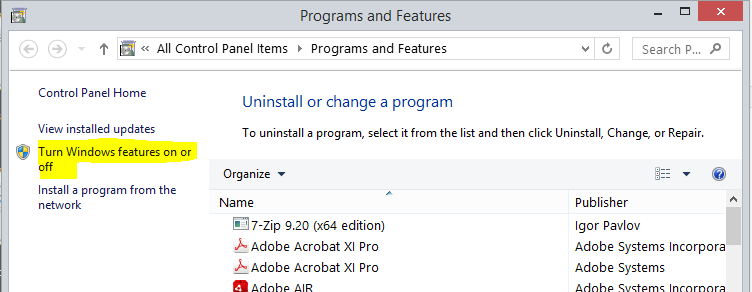
In the left-hand side of the Windows 8.1 taskbar, right-click on the Windows icon, and then select Programs and Features.
-
In the left-hand side of the screen, select Turn windows features on or off.
-
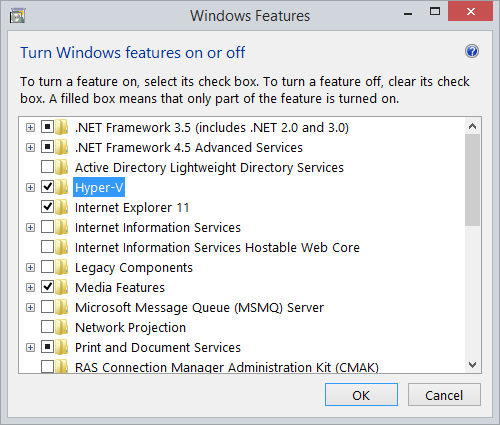
In the Windows Features screen, select Hyper-V and then OK.
-
Start Hyper-V Manager.
-
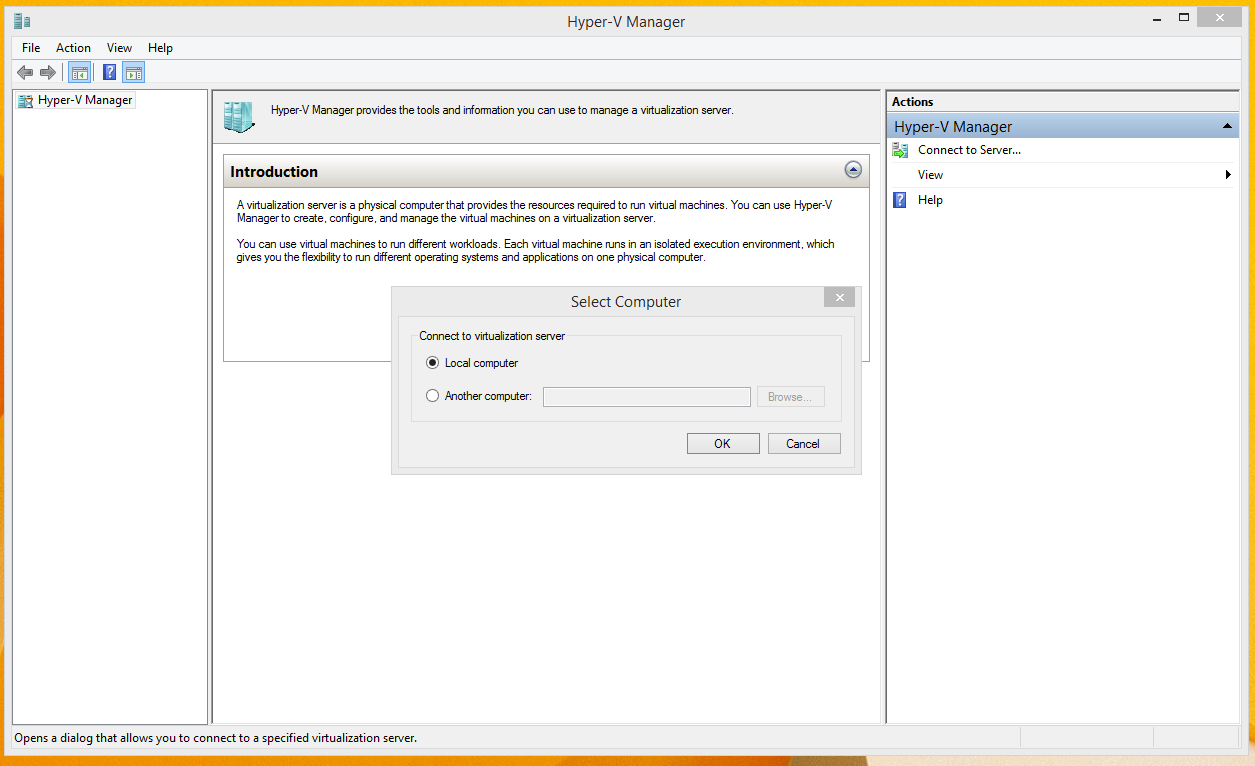
From the left-hand of the Introduction screen, select Hyper-V Manager, and then select Connect to Server.
-
Select Local computer.
-
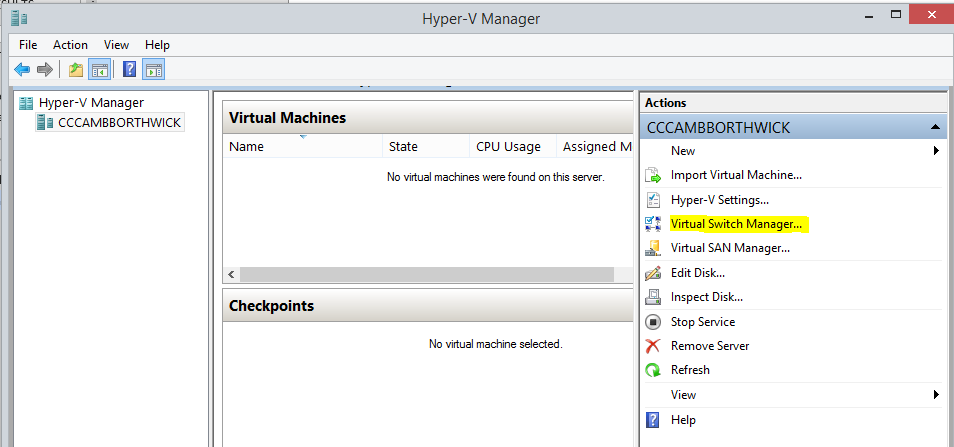
From the right-hand side of the Hyper-V Manager screen, select Virtual Switch Manager.
-
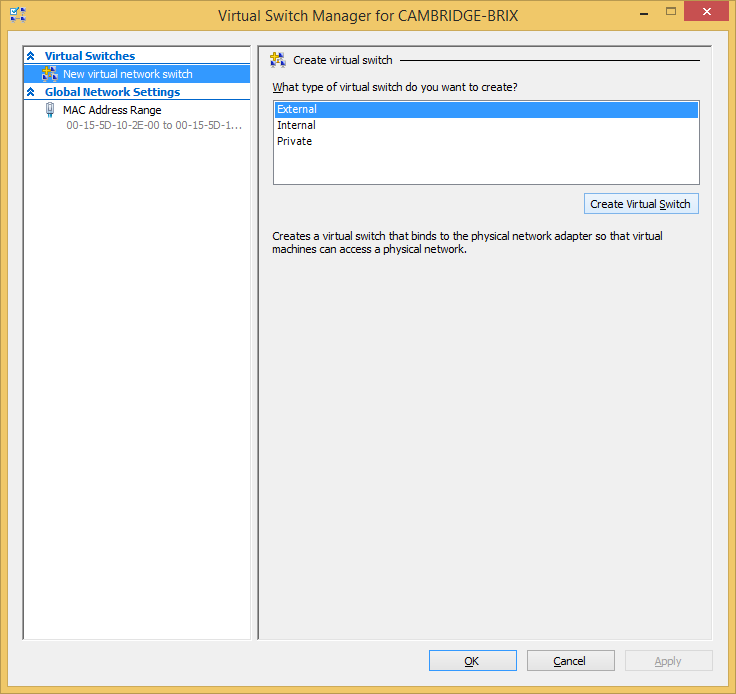
From the Virtual Switch Manager screen, select External and then Create Virtual Switch.
-
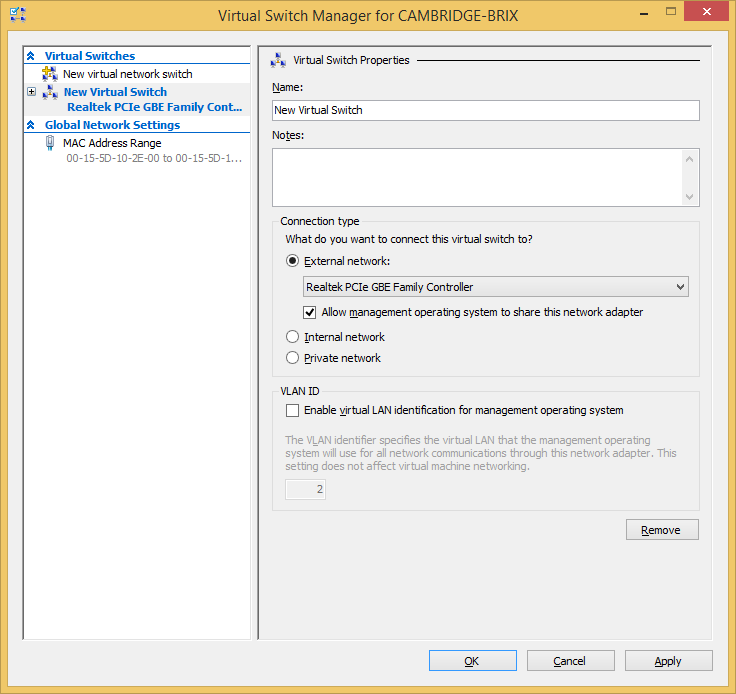
From the Virtual Switch Properties window:
-
Enter a name for the virtual switch
-
Select External Network, and then, from the drop-down list, select the wired control that is installed on your system.
-
Select Allow management operation system to share this network adaptor.
-
The Apply Networking Changes warning dialog appears. To continue, select Yes.
-
If you have a virtual machine already installed on your system, from the Hyper-V Manager screen, select Import Virtual Machine … and follow the instructions from the wizard. You will be asked to navigate to the location of the virtual machine.
If you do not have a virtual machine already installed on your system, select New > Virtual Machine … and follow the instructions from the wizard.
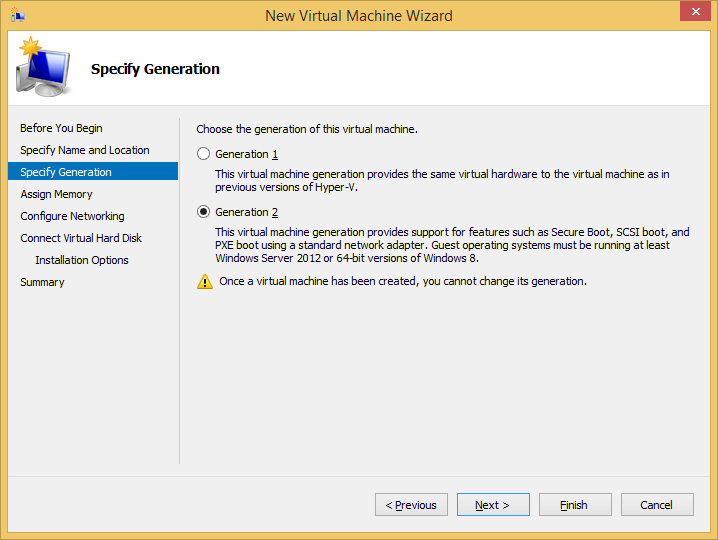
Note: When asked to specify a generation, select Generation 2.
-
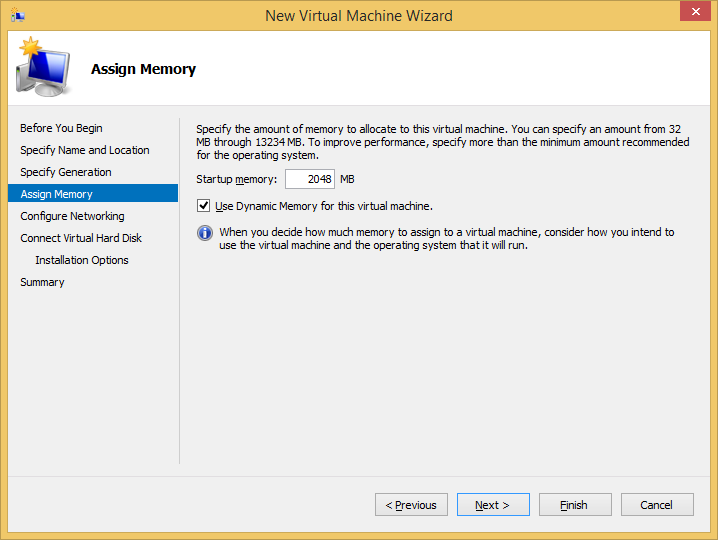
When asked to assign memory, enter 2048 in the Startup memory field.
Note: You can install a minimum of 1024 MB.
-
In Configure Networking, select the virtual switch that you created earlier.
-
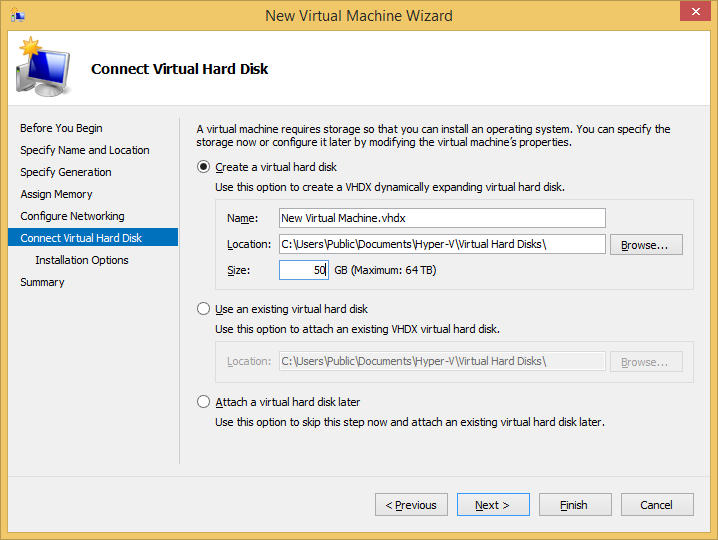
In Connect Virtual Hard Disk, enter 50 in the Size field.
-
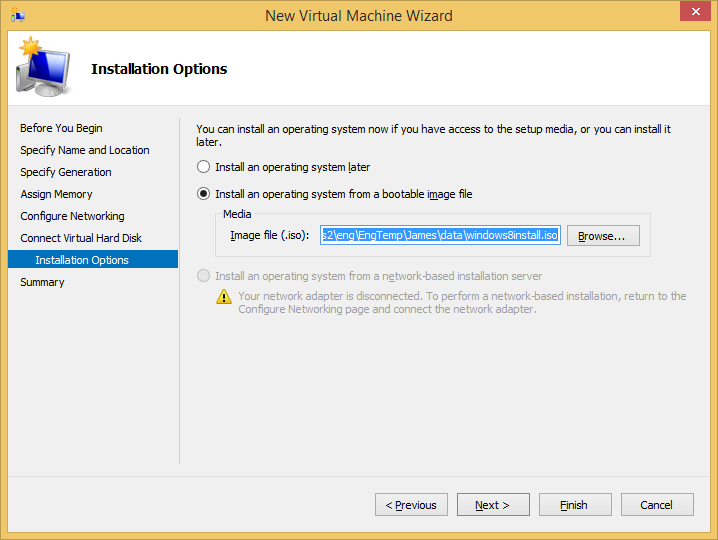
In Installation Options, select a bootable Windows installation file (.iso).
-
Select Start Virtual Machine.
-
Follow the instructions to install and configure Windows 8.1.
-
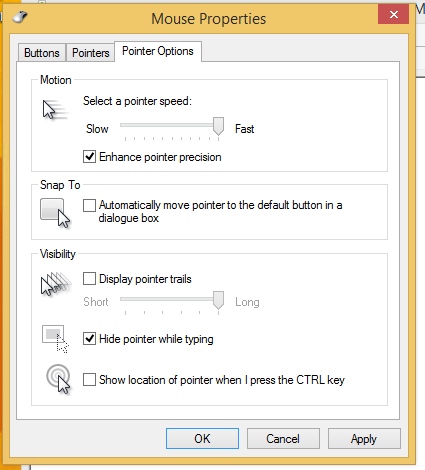
After Windows 8.1 is loaded, for ease of use, select Control Panel > Mouse > Pointer Options and increase the pointer speed.
-
Install Dynam-EC on the new virtual machine. For more information, see Installing Dynam EC.
-
Start Dynam-EC, and assign it to the Startup menu.