Pairing HelixNet user stations to the Base Station
Once connected to Arcadia's HelixNet network and appropriately powered, HelixNet beltpacks, remote stations and speaker stations can be paired to the Arcadia system:
-
from the CCM
-
from the HelixNet user station, using the front panel menu
| Note: | Pairing from the CCM is not available for endpoints that were last used on a HelixNet HMS-4X based system. Endpoints migrating from HMS-4X to an Arcadia system must initially be paired from the front panel menu of the HelixNet user station. |
Pairing/unpairing HelixNet user stations in the CCM
When the user stations are connected to the Arcadia HelixNet network and appropriately powered, they will appear as Discovered in the CCM.
-
In the CCM, navigate to Hardware>Resources>Add Resource
 >Wired .
 -
Select the device under Discovered and click the arrow to move it to Paired.
-
The device will work through its connection sequence.
-
The device is ready for use.
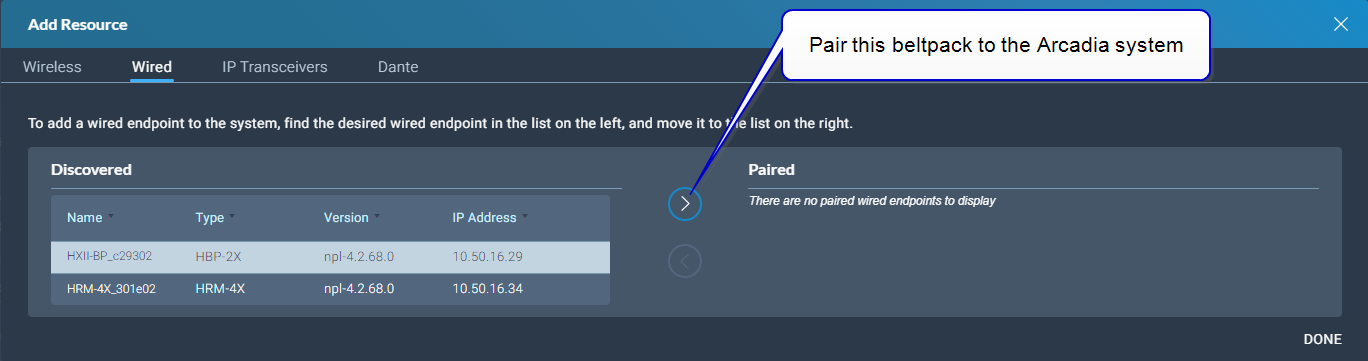
Repeat this step for each device.
| Note: | The device will automatically update on connection if a difference in firmware versions is detected. |
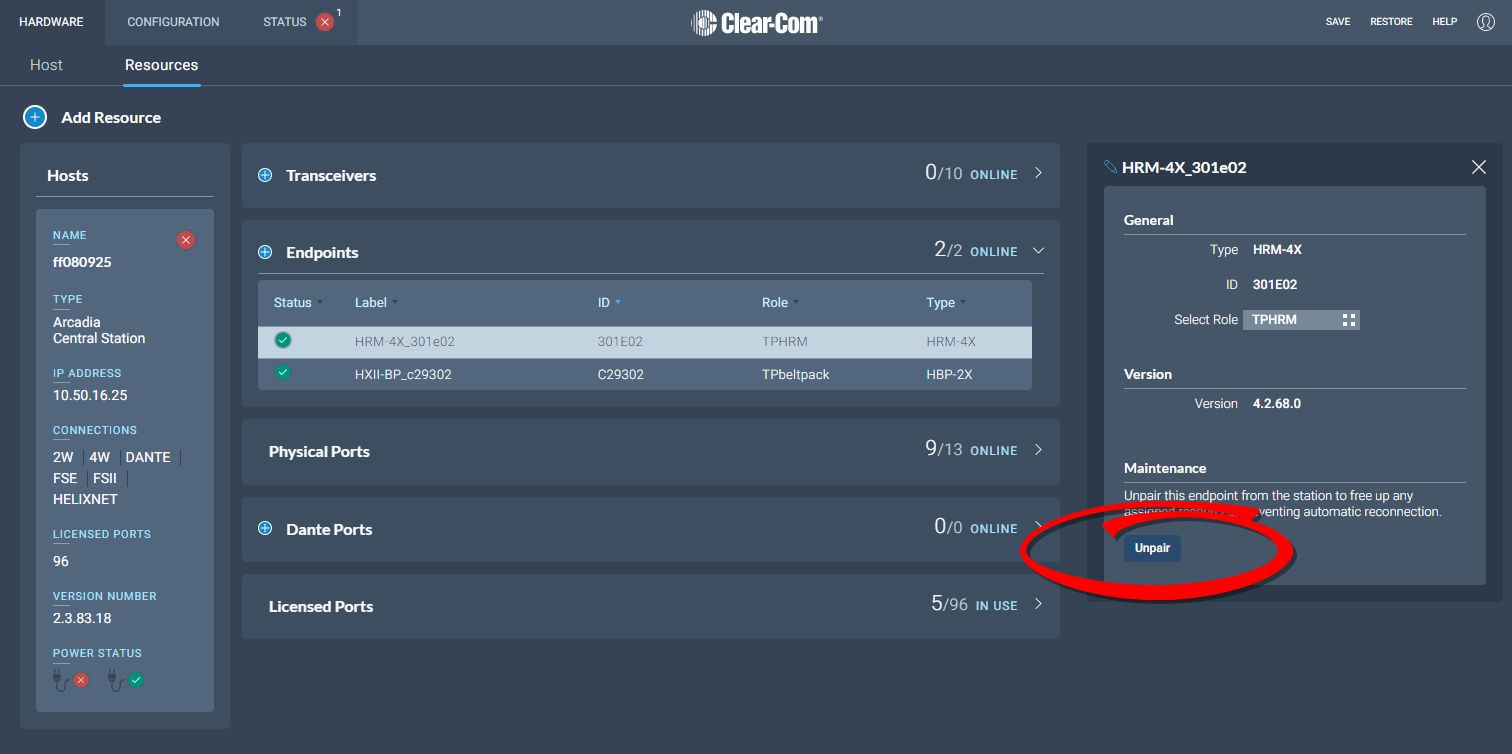
Once paired to a system, the device will automatically connect to that system whenever it is connected to the network. The devices can be unpaired from the system to prevent this from happening. To unpair a device from the system, navigate to Hardware>Resources>Endpoints [select device]>Unpair.
Pairing HelixNet endpoints from the device menu system
Beltpacks
-
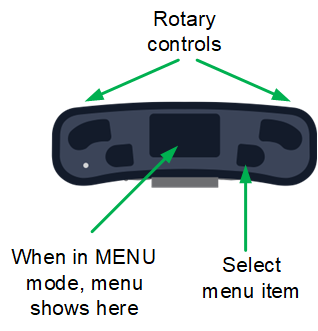
Press the Menu button on the front of the beltpack (short press) to enter menu mode.
-
Press the left call button on the beltpack (back). You will see the beltpack menu system.
-
Using the rotary controls and the right call button (select/enter), navigate to Networking>Pair to Station.
-
Select either;
-
Pair by Name and select the name of Arcadia
-
Pair by IP and enter the IP address of Arcadia’s HelixNet network connector
-
| Note: | You need to Save the IP address (right call button). |
Remote stations and speaker stations
-
Press the Menu button to enter menu mode.
-
Using the rotary controls, navigate to Networking>Pair to Station.
-
Select either;
-
Pair by Name and select the name of Arcadia
-
Pair by IP and enter the IP address of Arcadia’s HelixNet Network using the rotary controllers
-
| Note: | All devices will automatically update on connection if a difference in firmware versions is detected. |
Using HelixNet user stations on Arcadia
Once the HelixNet user station is connected to the Arcadia and the firmware updated if necessary, the HelixNet user station can be configured.
Arcadia’s default configuration assigns the first channels of the system to the HelixNet user stations on connection.
HelixNet user stations can be operated in Local Config. In this case, the user station is fully configured from its front panel menu. Any of the connected Arcadia’s HelixNet enabled channels can be assigned to the keysets of the user station.
Where central management is required, Roles can be created in the Arcadia’s CCM and then assigned to the HelixNet user station, either from the CCM’s Hardware>[Endpoint]>Properties or in the front panel menu of the user station. A role is a configuration of the keysets and settings of the user station. Multiple HelixNet devices can share a role and any role changes will be updated in real time.
-
Create roles for your devices. See Managing Roles
For HelixNet manuals and other resources see:
The HelixNet Knowledge Center on the Clear-Com website.