Monitoring System Status
You can monitor your system using the following features of the CCM:
- Overview
- Event Log
- Logic
 Overview
To see the Overview screen, navigate to Status > Overview. The following screen appears.
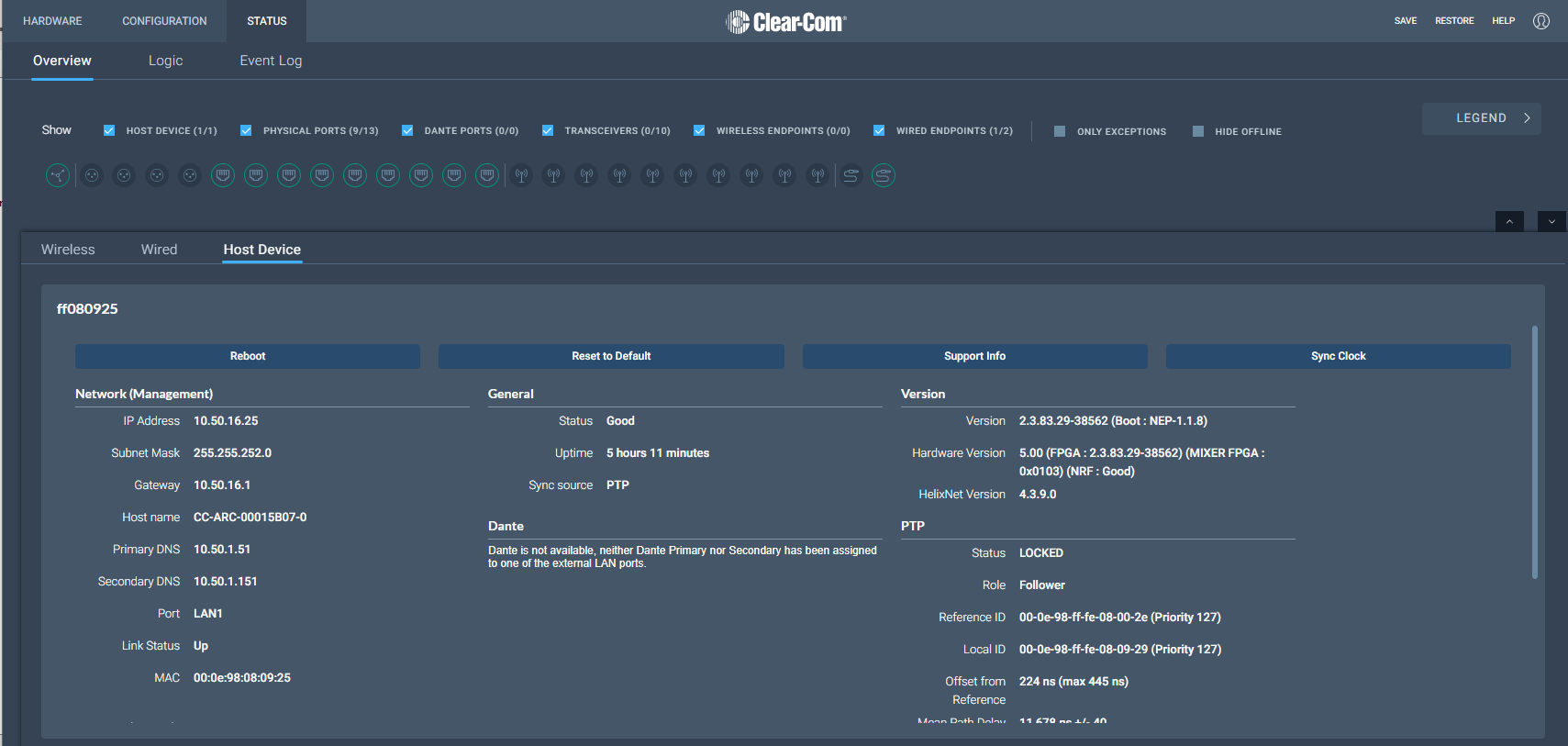
The Overview screen consists to two sections. There is an upper section that displays a list of system icons representing the ports, transceivers and endpoints and a lower section that gives detailed informationabout each connected device and about the Arcadia Station.
| Note: | There is currently no detailed status for 2W, 4W and Dante. |
System Icons
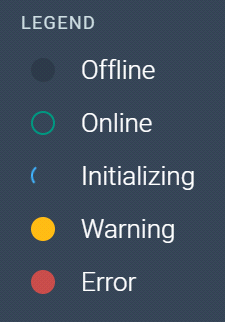
Each icon is color-coded to give an easily accessible view of the status of each entity.

The following legend is used to indicate the status of each entity.
Monitoring Wireless Devices
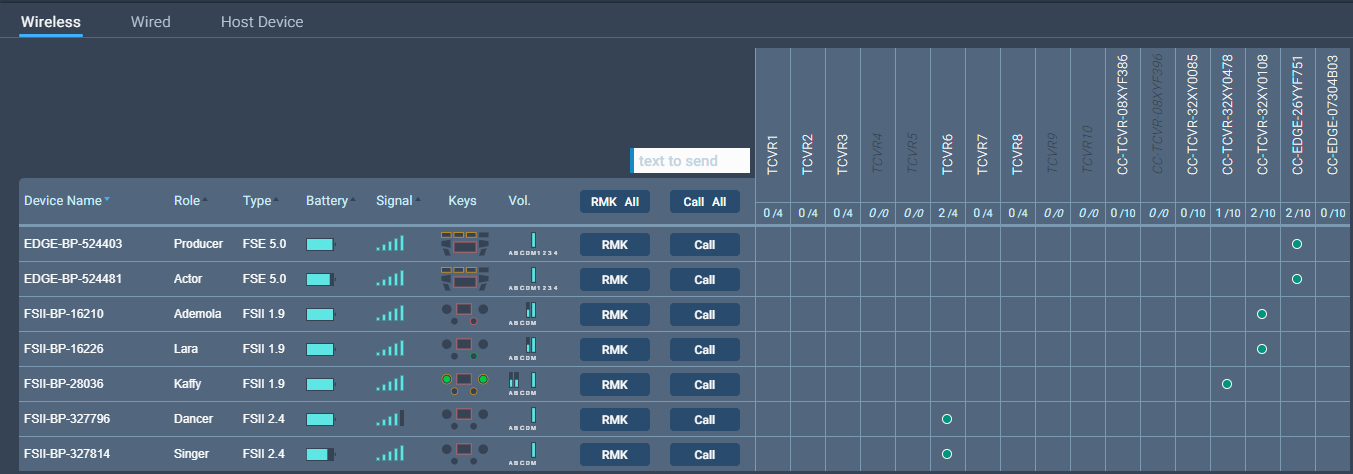
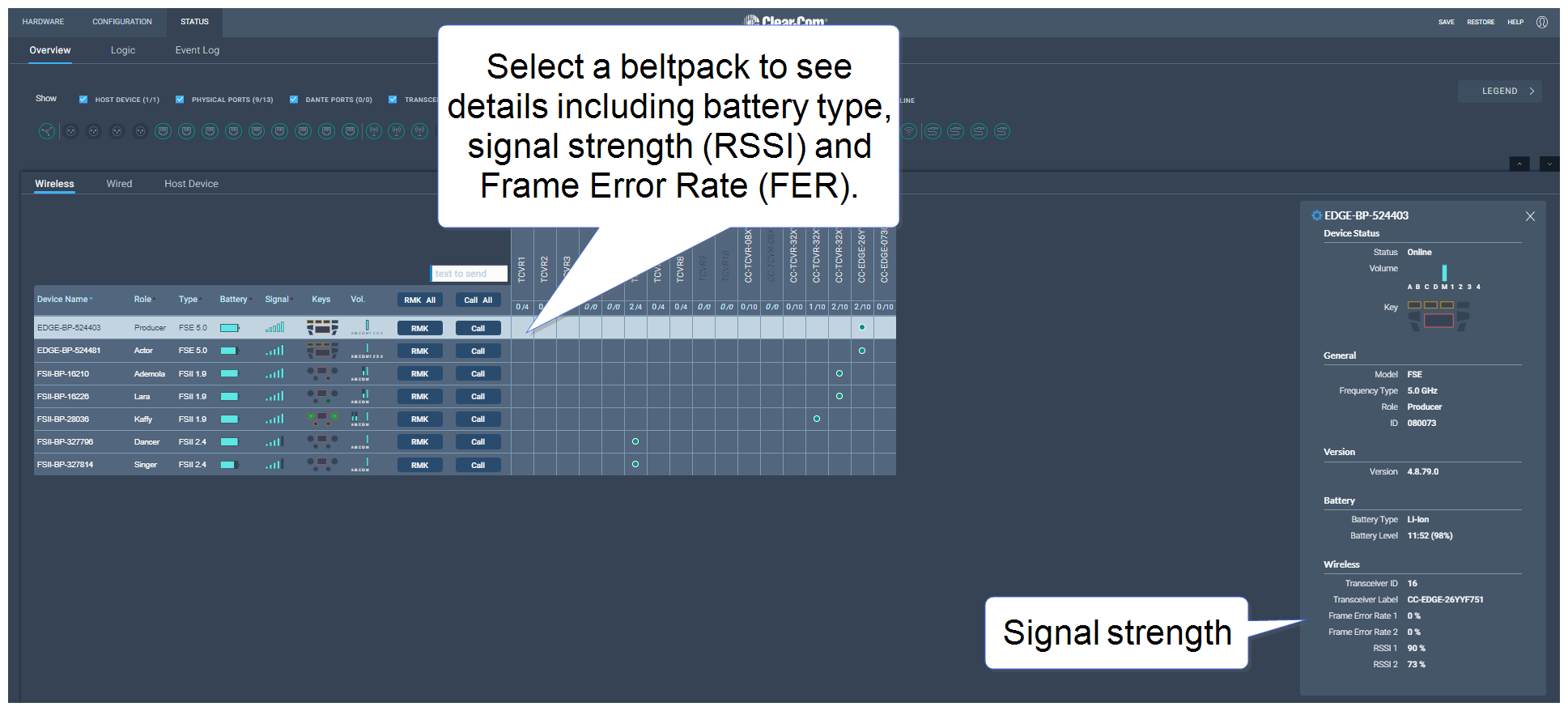
Navigate to Status > Overview > Wireless. This section of the Overview screen lists all the wireless devices connected to your system, and gives the following information for each device:
- Associated role
- Type of transceiver
- Battery level
- Signal strength
- Volume setting
- Remote Microphone Kill (RMK) button to mute all microphones connected to your system.
- Call button to send a text message to all connected devices.
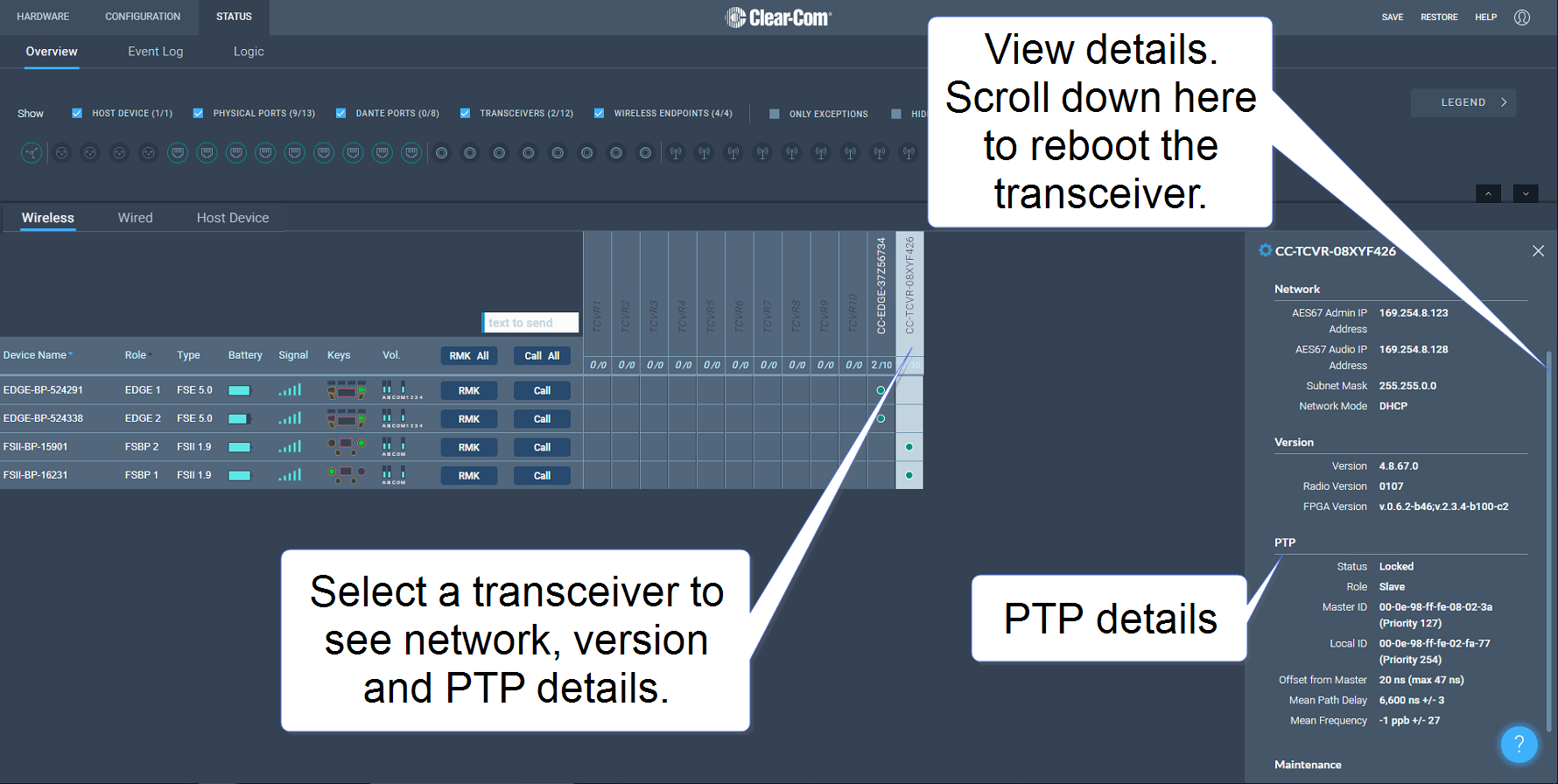
- Network and PTP status of transceivers
- Reboot transceiver
Transceiver details
Monitoring Beltpack Details
Monitoring Wired Devices
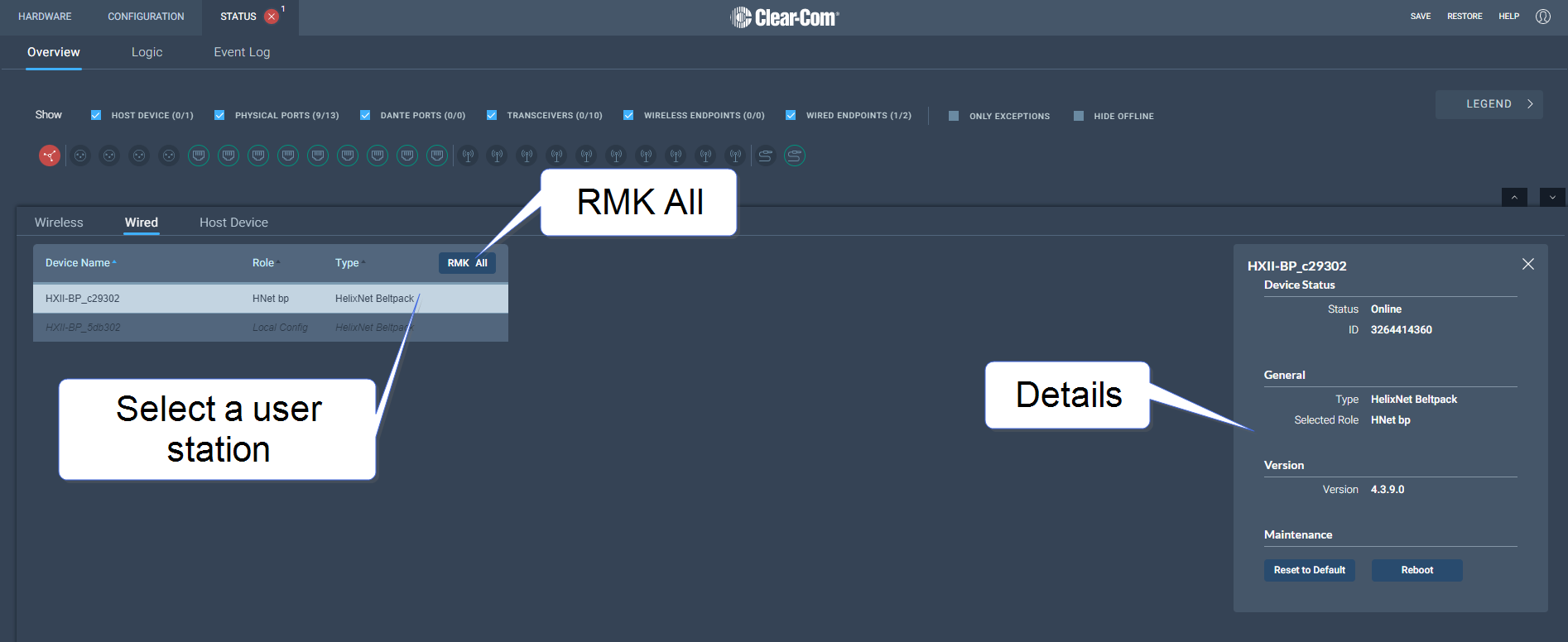
Navigate to Status>Overview>Wired. A screen appears that gives information about the HelixNet wired user stations (beltpacks, remote stations and speaker stations) and enables various procedures including:
| Procedure | Information |
|
|
|
|
|
|
|
|
|
|
From this page you can also RMK all. This will close the mic on all beltpacks, both wired and wireless.
Monitoring the Host Device
Navigate to Status > Overview > Host Device. A screen appears that gives information about the Arcadia Station and enables various procedures including:
|
|
|
|
|
|
|
|
|
|
|
|
|
|
|
|
|
|
|
|
|
|
|