The Core Configuration Manager (CCM)
Introduction
The CCM is an easy-to-use browser-based software tool with intuitive menus that enable you to quickly set up, configure and edit your system. It provides an overview of all the system components and interfaces. It is password protected and suitable for use in poorly lit environments.

You can access the CCM using the following internet browsers:
- Chrome
- Safari
- Firefox
- Microsoft Edge
- Make sure that the Arcadia Station is connected to a network using the LAN connector that is configured for management (Default LAN 1) on the rear panel of the device (
see Rear Panel Connectors and Indicators).
- Open a supported internet browser on a desktop that is connected to the same network as the Arcadia Station.
- In the browser address field, enter the IP address of the Arcadia Station. You can find this from the front panel menus, see Introduction to Configuring from the Front Panel. The login screen appears:
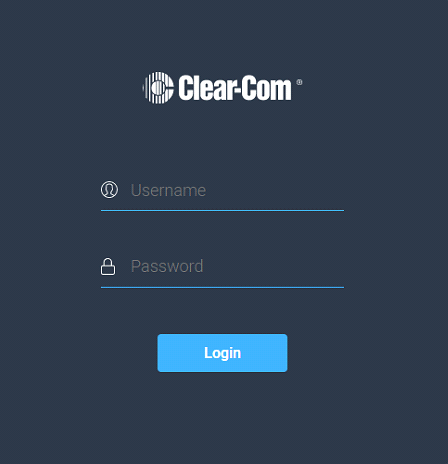
If you enter an incorrect user name or password, an error message appears and you are prompted to re-enter your user credentials.
-
Enter the username and password, and then click Login.
The default values are:
Note: The username and password are case sensitive.
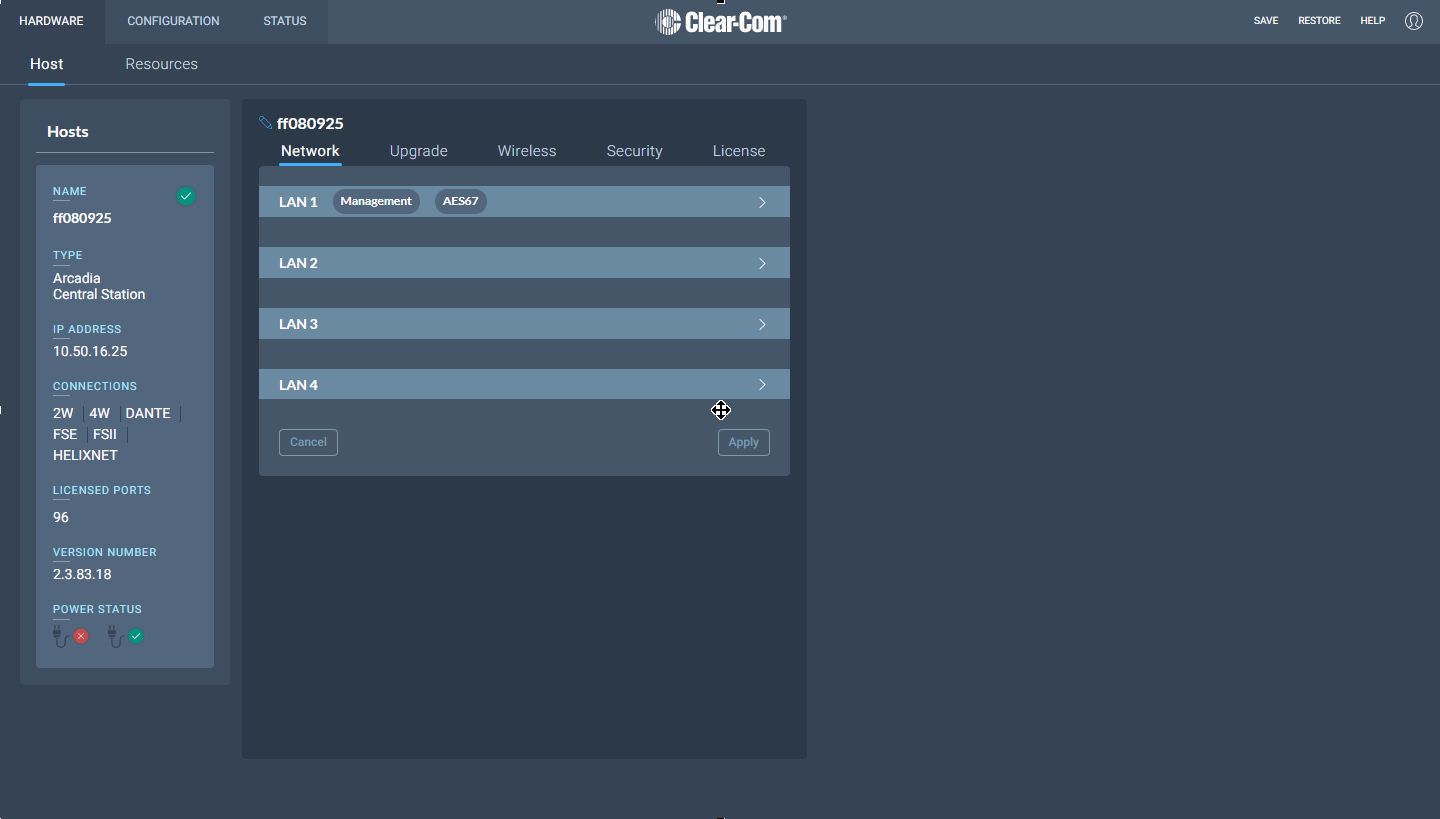
The CCM Hardware page opens.
|
Note:
|
On first opening the CCM, the Hardware page opens. On subsequent occasions, the Status page opens. |
 Accessing the CCM