Configure I.V. Direct in the Arcadia CCM
Create ports and user credentials (user ID, password, and IP address as needed).
Open the Arcadia CCM (find the device IP address in the front panel menu system). Navigate to Hardware > Resources.
Click the Add Resource button.

Make sure the I.V. Direct tab is selected.
Give the port a label.
Select Function, LQ signaling for LQ connections, non-signaling for anything else.
Click Create.
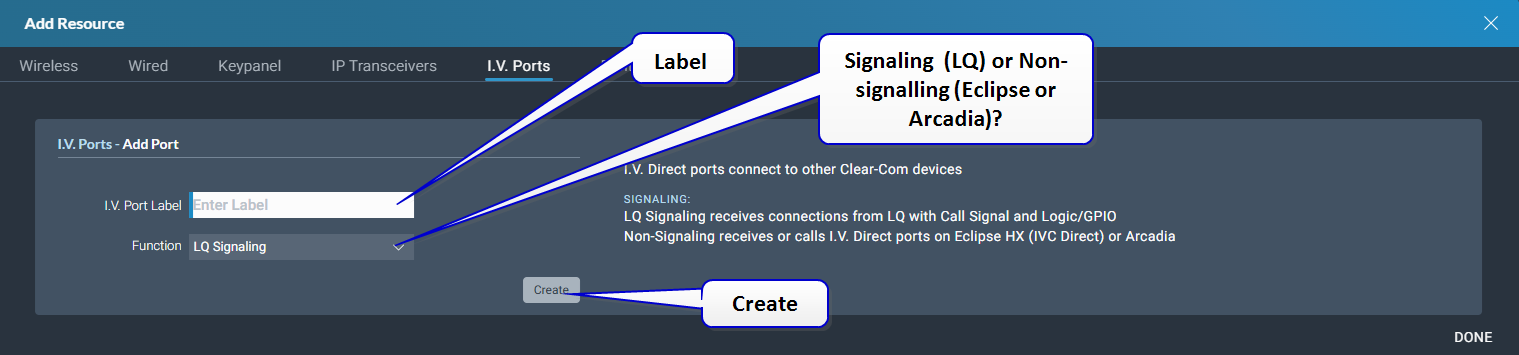
The Add Resource window stays open so you can create more than one port. Close the window or click Done when you have finished creating new ports.
Select the newly created I.V. port for Settings and Credentials.
Configure settings:
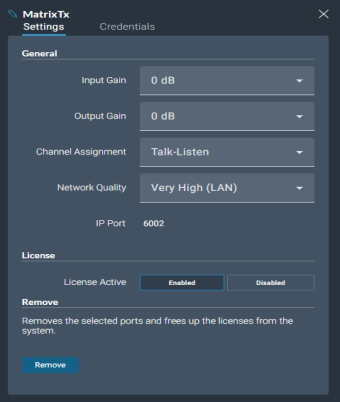
An I.V. port needs a license. If you disable the License Active checkbox (default is Enabled), the port will remain in your configuration but will not consume a license. You will not be able to transmit audio on this port if it is disabled.
Configure credentials. Configuration of credentials varies according to the device you are connecting to:
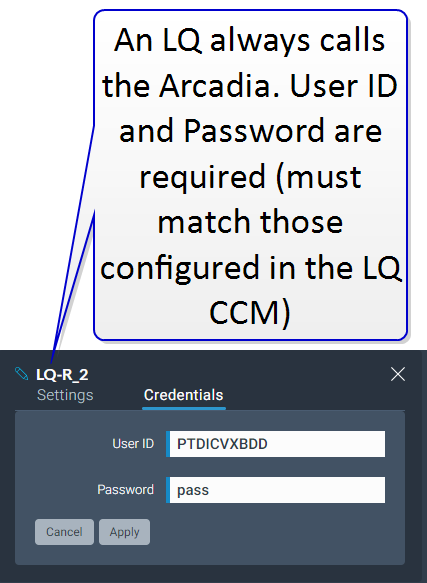
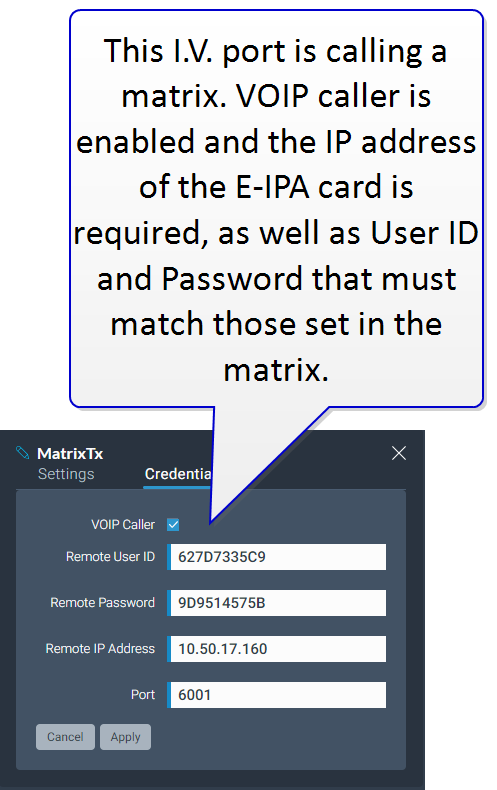
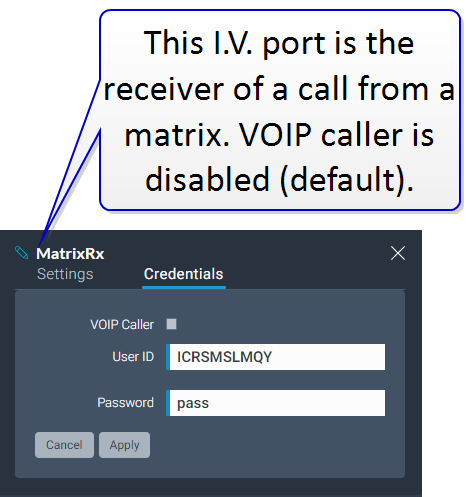
For more information see: I.V. Direct Configuration Overview
Note: Calls to an Arcadia must use TCP/IP port 6002. This is pre-configured and cannot be changed. Click Apply.
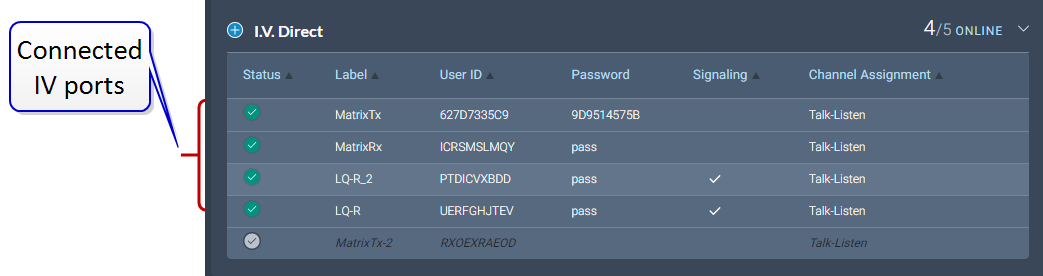
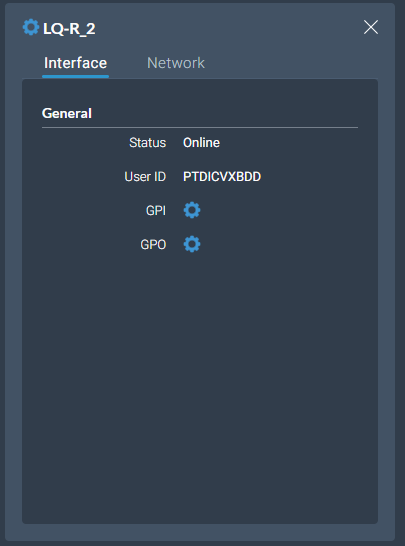
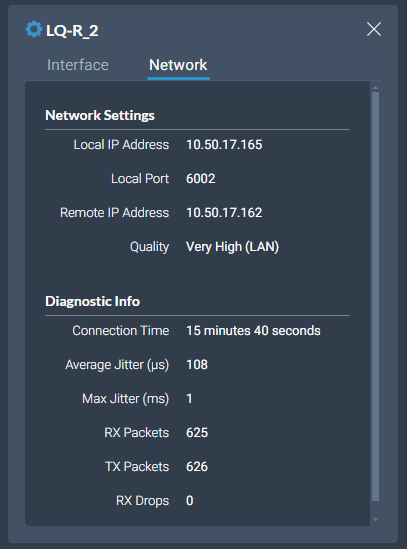
I.V. Direct ports will connect when both connecting devices have been networked and configured. For status and connection information, and to configure GPIOs, go to Status > Overview > I.V. Direct [select port].
Example connection statistics for and I.V. Direct with signaling (LQ)
| Example network statistics for and I.V. Direct with signaling (LQ)
|
Error messages - I.V. Ports
Click or hover on the red cross to see error messages
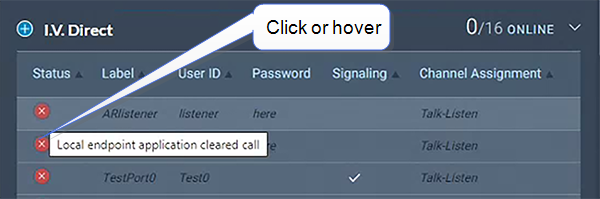
In the event of a connection failure you will see the following error messages:
| Message | Reasons for closing the connection |
|---|---|
Local endpoint application cleared call The local device has closed a connection | The License was removed on the local side (Arcadia) for an active I.V. Direct connection The username and password were changed on the local side (Arcadia) for an active I.V. Direct connection There are no free licenses for I.V. Direct ports on the local side |
Remote endpoint application cleared call The remote device has closed the connection | The username and password were changed on the remote side (LQ/Arcadia/EHX) for an active connection The License was removed on the remote side (LQ/Arcadia/EHX) for an active connection The I.V. Direct port was disabled on the remote side (LQ/Arcadia/EHX) for an active connection There are no free licenses for I.V. Direct ports on the remote side |
| Call failed a security check and was ended | The username or password is wrong |
Configuration for connecting devices:
LQ : in the CCM, navigate to Accounts > IVC Direct to add ports.
Eclipse matrix: in the EHX software, navigate to Hardware > Cards and Ports [select E-IPA card] > Add port type IVC Direct.
For information on creating and configuring I.V. Direct ports in LQ or Eclipse HX Matrix, see the User Guide for those products, available from the Clear-Com Knowledge Centers.