Configuring IFB
 IFB Overview
From the IFB tab you can:
- Create IFB (max. 100)
- Add interface ports (input) to an IFB (max. 6)
- Add interface ports and/or roles (output) to an IFB (max. 6)
Talkers are added to the IFB IFB by assigning them to a role keyset with a Talk activation.(max. 6)
| Note: | HelixNet role keysets cannot be assigned to IFB. |
Adding a New IFB
In the CCM, navigate to Configuration > IFB.
Click the blue + sign to add a new IFB.
You will see the new IFB appear in the list on the left side of the page, and an overlay on the right side where you can configure the IFB. Add Interruptible Inputs, Outputs, and set Attenuation level here.
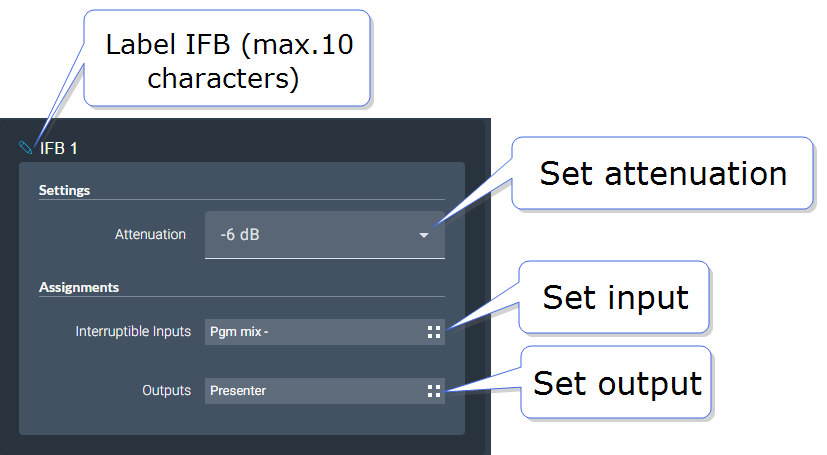
Set input.
Set output.
Set the attenuation level on the input (how much the input volume is attenuated (lowered/ducked) when the talker talks).
Once you have set input and output, the input can be heard at the output.
Adding Talkers to IFB
When you have added inputs and outputs, you can add a talker.
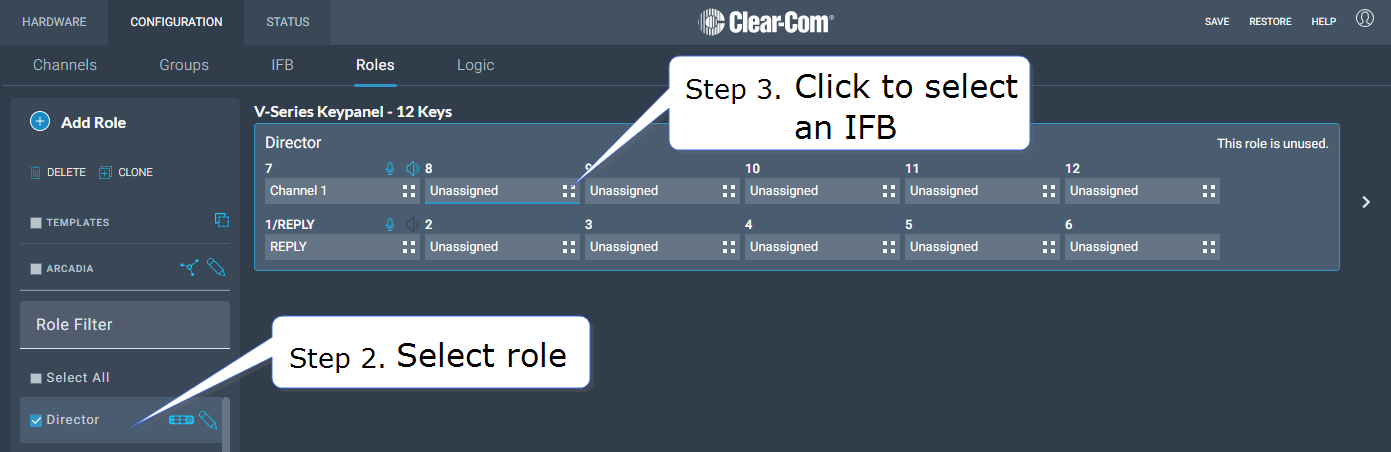
In the CCM, navigate to Configuration > Roles.
- Select the role you wish to configure with a talk key to the IFB.
- Add the IFB to a key.
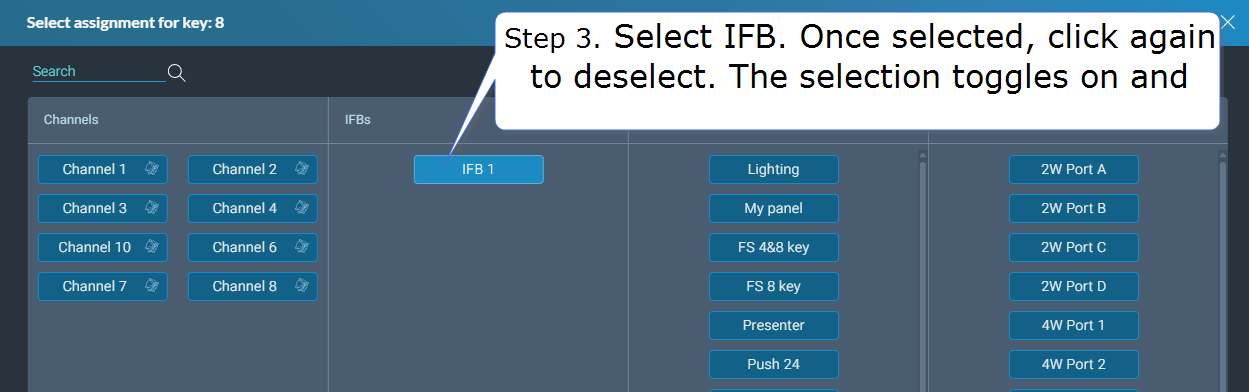
| Note: | A role keyset assigned to an IFB with any type of listen activation will provide the role with ability to listen to the IFB output. |
4. When you have selected a talk key to the IFB, and the configuration has been actioned by the system, you will see the live IFB configuration in the center panel.
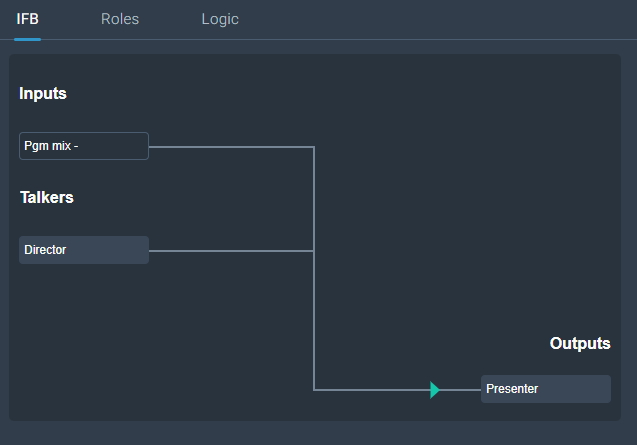
| Note: | The IFB page will only display interfaces and Roles that are online with the system. |
| Note: | In this example, Pgm mix - is offline. This is indicated by a box that is not colored grey. |
| Note: | Green (listen) and red (talk) arrows indicate the routing of audio in the system. |
Once this example is configured; when the Talker (in this case, Director) presses the IFB key on the panel, a talk is routed to the Output (Presenter) and the Input volume (Pgm mix -) is lowered while the Director's talk is active.
| Note: | At the time of writing, HelixNet cannot be used with IFBs. This is due in a future release. |