FS Edge Transceivers
Wireless region and channel setup are important when using FS Edge transceivers.
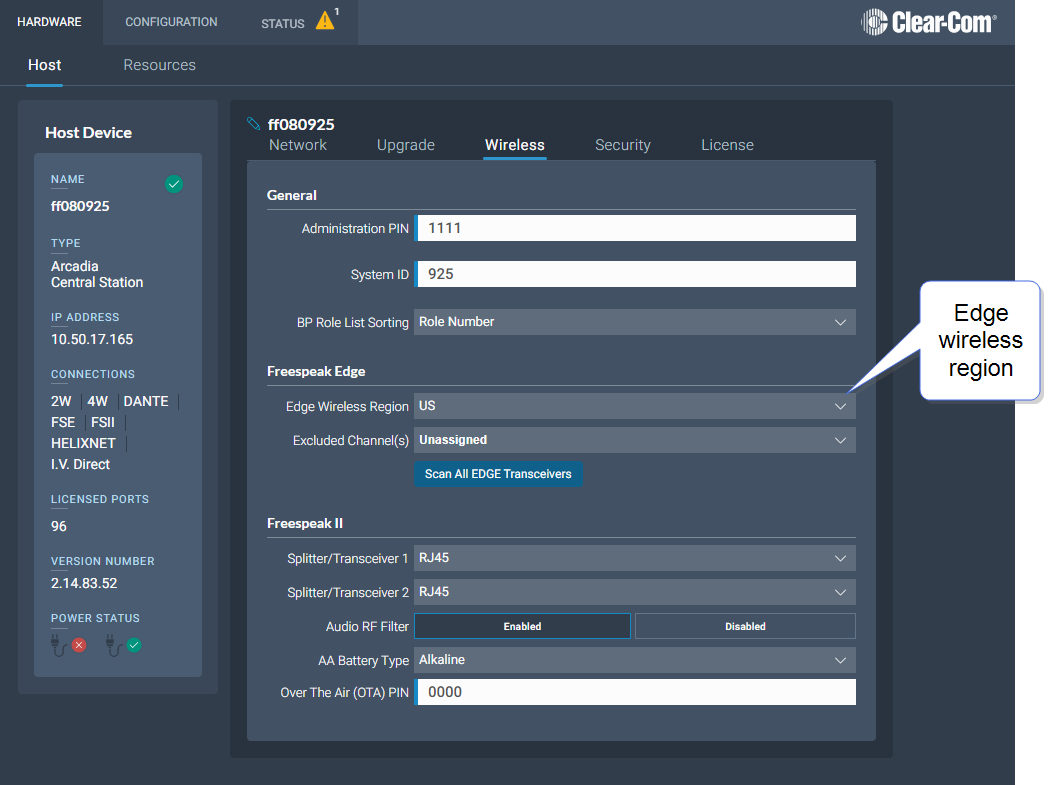
Your Edge transceiver has a wireless region pre-configured, in order to comply with regional regulations. The wireless region setting in the CCM MUST match that of your transceiver, or the system will not work. You will see an error message in the Status page if the regions do not match.
To set the wireless region in the CCM, navigate to: Hardware > Host > Wireless > Wireless Region.
| Note: | Channel Scanning and auto channel selection are only available when at least one 5 GHz transceiver is registered to the system. |
The FreeSpeak Edge transceiver system automatically selects channel 1, 2 and a backup channel (if using DFS channels) on each transceiver when you set it up. For best performance, you must ensure that selected channels are clear of interference from other devices. You can use the channel scanning feature and auto select the best channels for each transceiver. Channel scanning will scan all the 5 GHz channels in your local RF space.
To conduct a channel scan, navigate to: Hardware > Resources > Transceivers [select transceiver] > Wireless Channels and select Refresh Scan.
After channel scanning, to auto select the optimum channels for each transceiver use Auto Select.
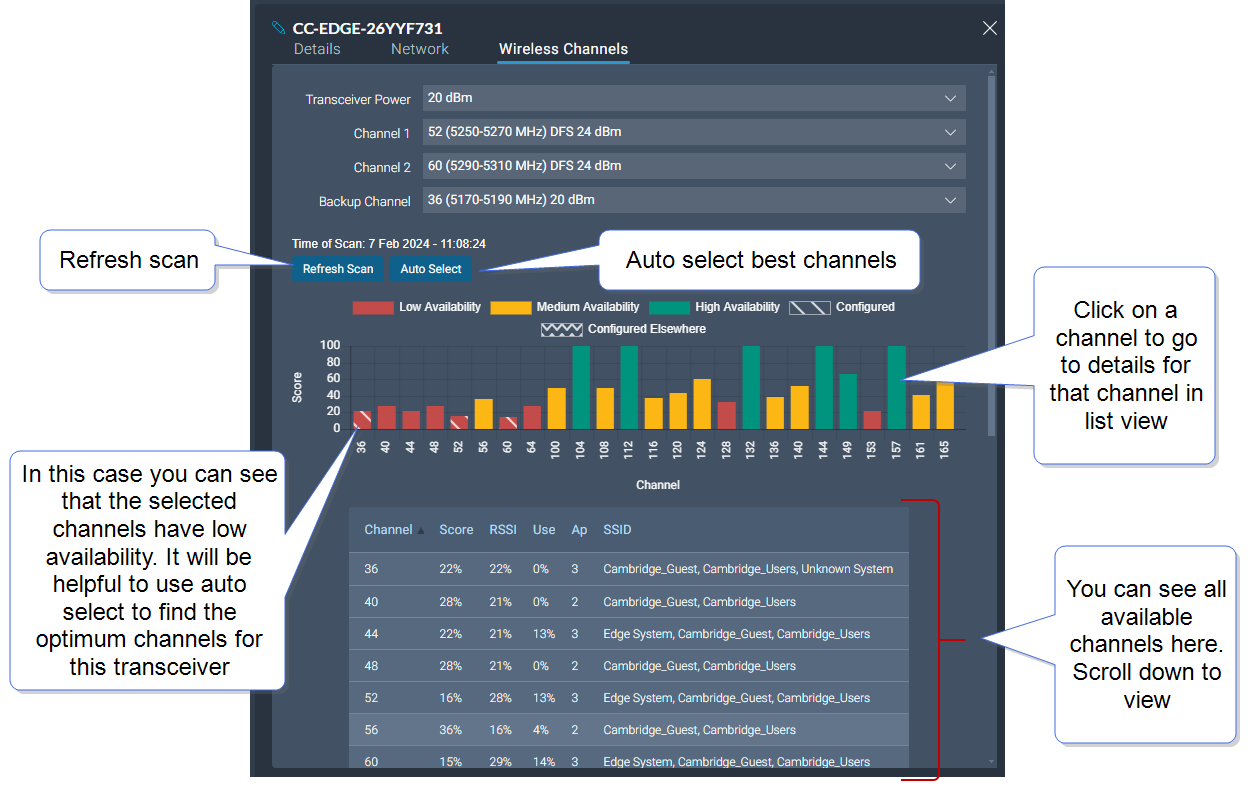
Channel Score is calculated using a weighted combination of:
• RSSI (Received Signal Strength Indicator)
• Channel activity (Use)
• Access points (Ap)
To scan all the transceivers in your network simultaneously, go to Hardware > Host > Wireless > FS Edge > Scan All Edge Transceivers.
For more detail on using FreeSpeak Edge transceivers, see the FreeSpeak Edge User Guide available online from the Clear-Com FreeSpeak Edge Knowledge Center.
 Wireless Region